Docs › Energy, Settings, license and updates
Energy, Settings, license and updates
This is what keeps Octopus running: the computer awake while agents work, the Settings pages, the free trial, buying and renewing the license, updates and languages. At the end, what stays with you and what leaves your computer.
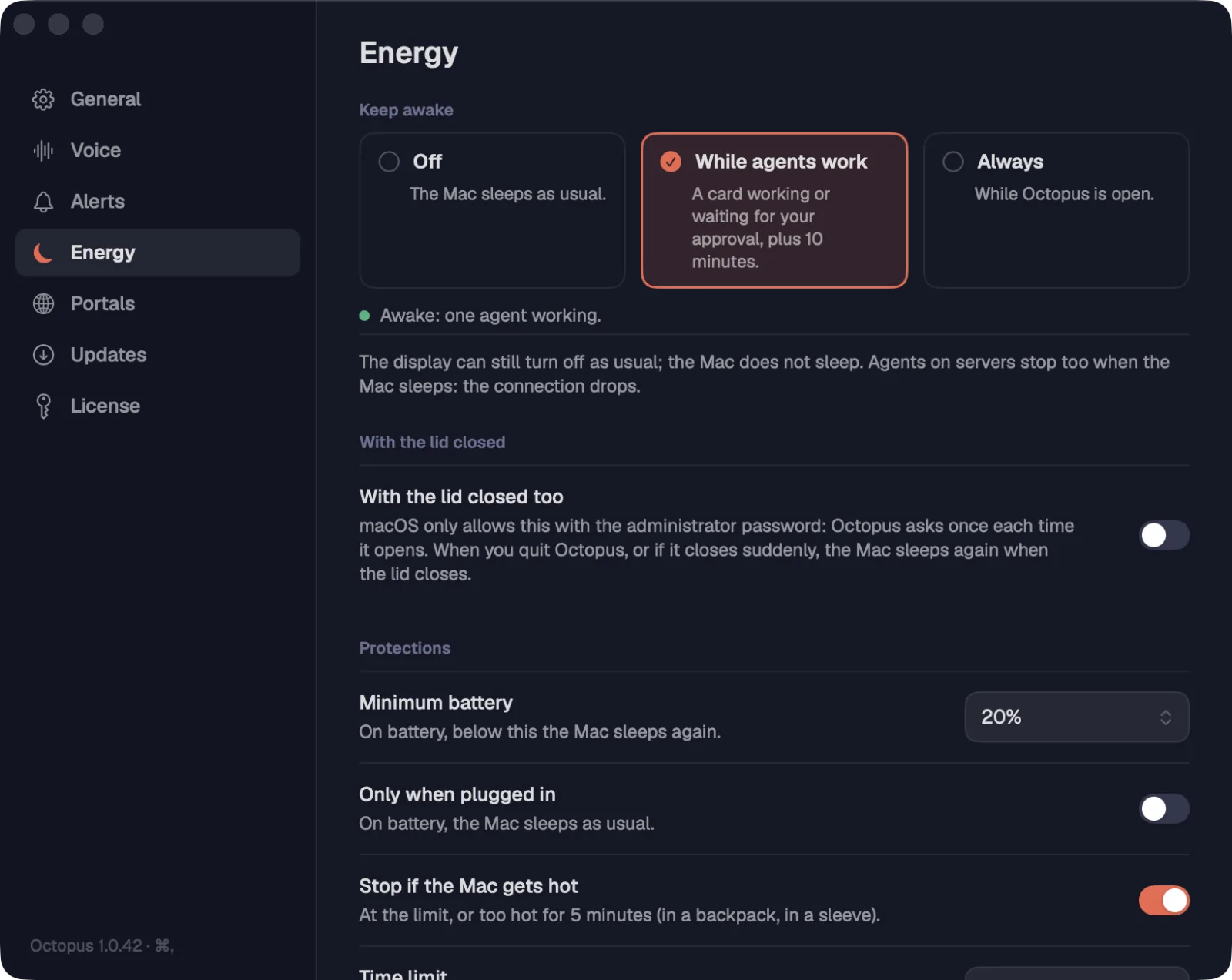
With Keep awake, the computer doesn't go to sleep on its own while an agent works or waits for your approval. The screen turns off as usual; only the computer's sleep is held off.
Step by step
- Open Settings (⌘,Ctrl+,) and click Energy.
- Under Keep awake, choose “Off” (the computer sleeps as usual), “While agents work” (a card working or waiting for your approval, plus 10 minutes) or “Always” (while Octopus is open).
- The status line says what's happening now, like “Awake: one agent working.” or “Awake for 8 more min after the last work.”
| Settings | ⌘,Ctrl+, |
The default is “While agents work”. Agents on servers also stop when your computer sleeps, because the connection drops.
See alsoWith the lid closedProtectionsKeep running when the window is closed
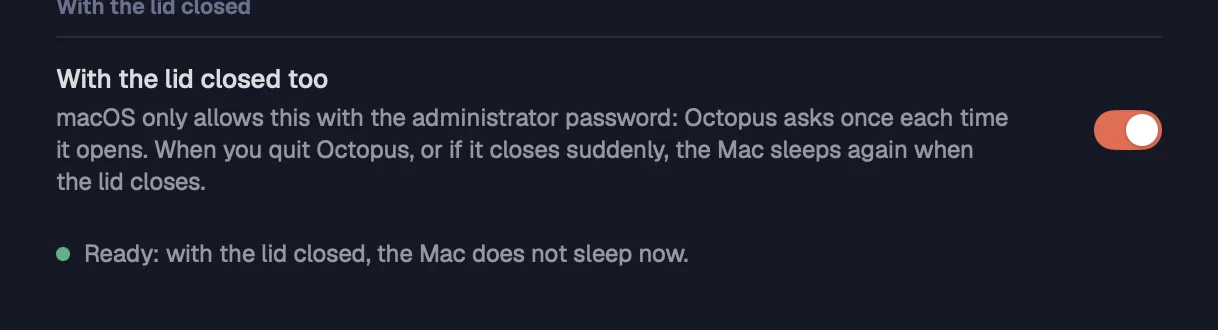
The “With the lid closed too” option keeps agents working with the laptop lid closed. It's optional, only works with Keep awake on, and each system does it its own way.
Step by step
- In Settings › Energy, turn on “With the lid closed too”.
- On the Mac, macOS only allows it with the administrator password. Octopus asks for the password once each time it opens; if it's missing, click “Ask for the password”. When you quit Octopus, or if it closes suddenly, the Mac goes back to sleeping when you close the lid.
- If the Mac's sleep was left off from a previous time (the Mac restarted or Octopus closed suddenly), Octopus tells you and offers “Restore sleep”.
- On Windows, while the computer stays awake, the lid action in the power plan becomes “Do nothing”. When it stops, when you quit Octopus or if it closes suddenly, yours comes back. No administrator needed.
- On Linux, Octopus asks the system to ignore the lid (systemd-inhibit), only in your session. GNOME and KDE handle the lid in different ways: under “Test on this Linux”, click “Test” and then close the lid for a minute with an agent working.
Without the password on the Mac, the closed lid doesn't work for this run, but with the lid open the Mac stays awake.
See alsoKeep awakeKeep awake in the tray
Protections stop Keep awake before it drains the battery or overheats the computer. When one of them stops it, Octopus tells you in a notification.
Step by step
- Minimum battery: No minimum, 10, 20, 30 or 50%. On battery, below that the computer goes back to sleeping. The default is 20%.
- Only when plugged in: on battery, the computer sleeps as usual.
- Stop if the computer gets hot: at the limit, or too hot for 5 minutes (in a backpack, in a sleeve). It comes on.
- Time limit: No limit, or 1, 2, 4, 8 or 12 hours awake in a row.
- When a protection stops it, the status line says why, like “Stopped: the computer got hot. Back when it cools down.”
Some computers don't report their temperature to Octopus. On those, the page tells you the heat protection has no way to act.
See alsoKeep awake
Closing the window doesn't quit Octopus. Alerts, the agents' watch and Keep awake keep going; the option comes on.
Step by step
- In Settings › Energy, in the Without the window section, leave “Keep running when the window is closed” on.
- On the Mac, click the Octopus icon in the Dock to open the window again. ⌘QCtrl+Shift+Q quits Octopus for good.
- On Windows and Linux, use the tray icon: “Open Octopus” shows the window; “Quit Octopus” quits for good.
- On a Linux without a tray (GNOME without the AppIndicator extension), Octopus tells you when you close the window: open it again from the applications menu.
- On Windows and Linux, portals don't work with the window closed. Open the window for an agent to use a portal.
| Quit Octopus | ⌘QCtrl+Shift+Q |
See alsoKeep awake in the trayAlerts from workspaces that aren't openHidden portals sleep
On Windows and Linux, the Octopus icon in the system tray shows the Keep awake status and switches the mode without opening Settings.
Step by step
- Right-click the Octopus icon in the tray (on Windows, a single click already opens the window).
- “Open Octopus” shows the window.
- The status line says what's keeping the computer awake, like “Awake: one agent working.”
- “Keep awake ▸” switches the mode (Off, While agents work, Always) and turns “With the lid closed too” on or off.
- “Quit Octopus” closes the app.
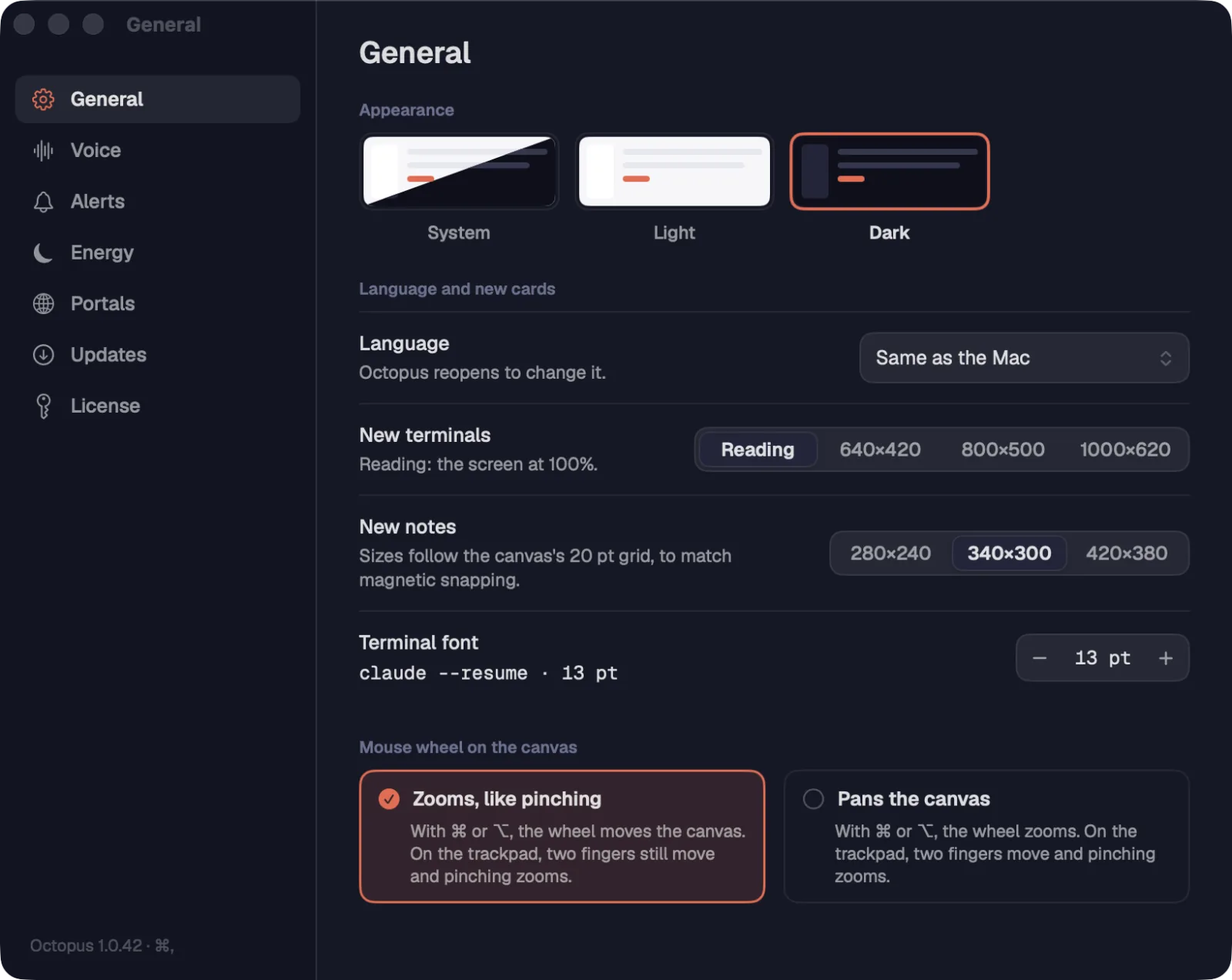
Settings has seven pages: General, Voice, Alerts, Energy, Portals, Updates and License. The window opens on the last page you used.
Step by step
- Press ⌘,Ctrl+,, or click the gear at the bottom of the sidebar.
- Pick the page in the left column. The Octopus version is at the bottom of the column.
| Settings | ⌘,Ctrl+, |
See alsoGeneralVoice and AlertsSettings › VoiceSettings › AlertsKeep awakePortalsUpdatesSettings › License
The General page has the appearance, the language, the size of new cards, the terminal font and what the mouse wheel does on the canvas.
Step by step
- Appearance: System, Light or Dark. The default is Dark.
- Language: Same as the Mac (on Windows and Linux, Same as the system), Português (Brasil), English or Español. Octopus reopens to switch.
- New terminals: Reading (the screen at 100%), 640×420, 800×500 or 1000×620.
- New notes: 280×240, 340×300 or 420×380. The sizes follow the canvas grid, to match magnetic snapping.
- Terminal font: from 9 to 28 pt, with a sample line. It applies right away to every open terminal.
- Mouse wheel on the canvas: “Zooms, like pinching” or “Pans the canvas”. On the Mac, with ⌘ or ⌥, the wheel does the other one. On Windows and Linux: in zoom mode, Alt pans the canvas; in pan mode, Ctrl or Alt zoom. On the trackpad, two fingers pan and pinching zooms.
- On Windows and Linux, Performance › “Light mode” removes the blur behind focus mode and the animations of the cards and the view.
The same language and appearance are also at the bottom of the sidebar: the globe and the theme button.
The Voice and Alerts pages have their own guides. Here's a summary of what each one decides.
Step by step
- Voice: the Gemini API key, the spoken language, the vocabulary, how the cleanup works, finishing by itself after a silence and Restore defaults.
- Alerts: alerting when an agent needs you, what alerts (Asking for you and Done), watching the workspaces that aren't open, the system notification, the number on the app icon, the Sound (Octopus, System or None, with Play) and Who decides (Claude (Haiku), Codex or Rules only).
The Portals page has the limits for WhatsApp messages sent by agents and the portals' login profiles.
Step by step
- Agents' WhatsApp: Interval between messages (2 to 60 s), Messages per hour (10 to 200) and Messages per day (50 to 1000), adding up all agents on each account. The default is 1 every 5 s, 60 per hour and 300 per day.
- Loosening a limit asks first: the more messages, the higher the risk of WhatsApp banning the number.
- Portal profiles › “Manage profiles…”: the portals in a profile share logins, and each profile is kept apart from the others.
Agents only send messages with your approval, unless you change that on the portal's card.
See alsoWhatsApp limitsLogin profiles
Octopus checks for and downloads new versions on its own. When there's one, it shows what changed in your language.
Step by step
- Open Settings › Updates to see the version, the last check and “Check for updates now”.
- On the Mac, “Check for updates automatically” checks every 6 hours and “Download and install automatically” gets the new version ready; it takes effect the next time the app opens. In the Octopus menu, “Check for Updates…” checks right away.
- On Windows and Linux, Octopus checks every 4 hours and downloads the new version on its own, with the signature verified. A notice offers “Restart” or “Later”; restarting switches versions without losing your terminals.
- On Linux, with the .deb, installing asks for the administrator password; with the AppImage, the file is replaced in place.
- In the action palette on Windows and Linux (Ctrl+Shift+P), “Check for Updates…” also checks right away.
An update without a valid signature is refused: the app downloads nothing that doesn't come from Octopus.
See alsoThe action palette
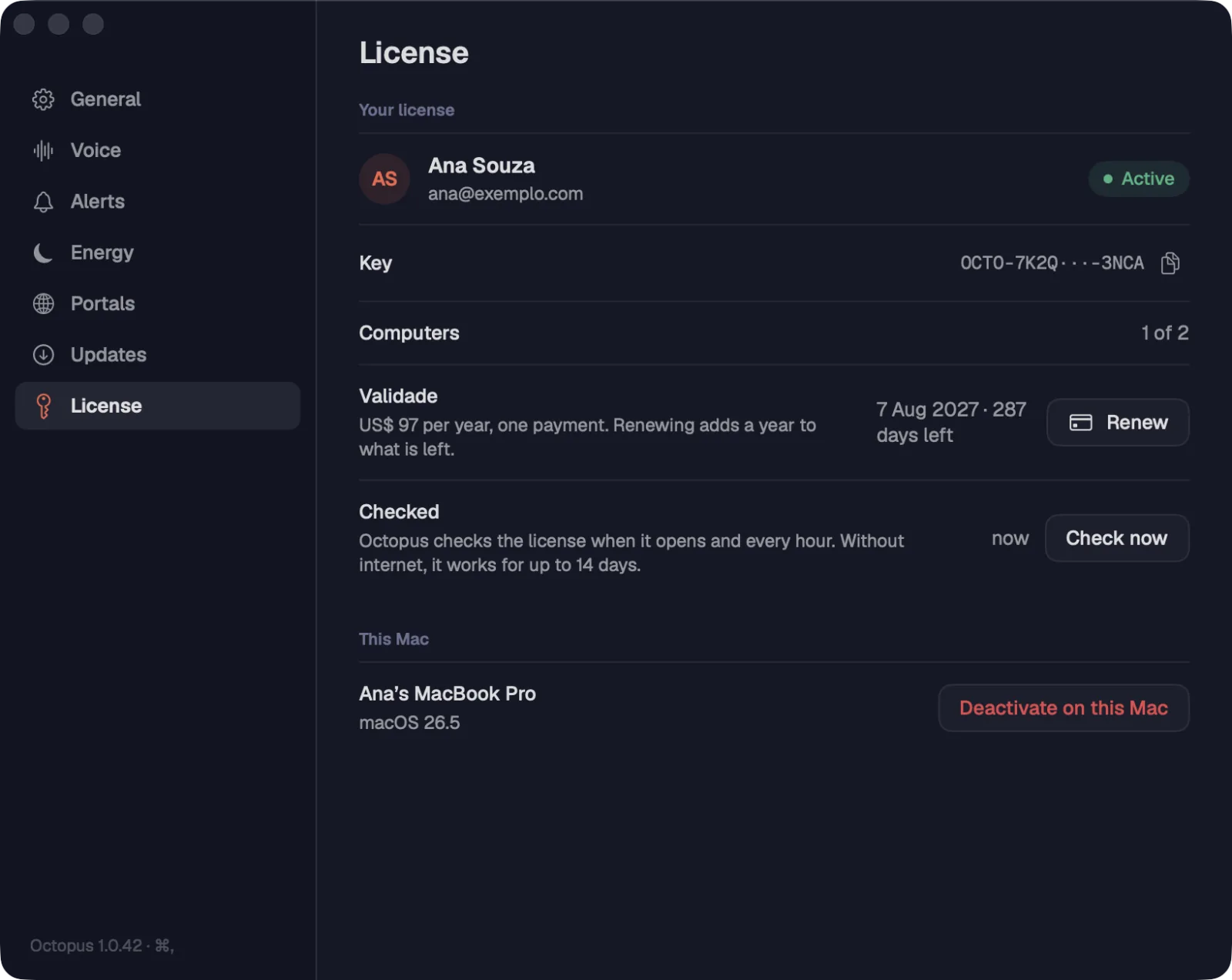
The License page shows who the license belongs to, how long it's valid and how many computers it's on. From here you buy, renew, check and deactivate this computer.
Step by step
- Open Settings › License.
- Under Your license: the holder's name, the Key (with the copy button), Computers (like “1 of 2”) and the Expiry, with “Buy” or “Renew”.
- Checked: Octopus checks the license when it opens and every hour. “Check now” checks right away.
- Under This Mac (This computer, on Windows and Linux): the name and the system, and the “Deactivate on this Mac” (“Deactivate on this computer”) button.
Without internet, Octopus works for up to 14 days. If the license has a problem (expired, revoked, deactivated, not checked for more than 14 days), a screen says why and what to do; your workspaces, conversations and servers stay saved.
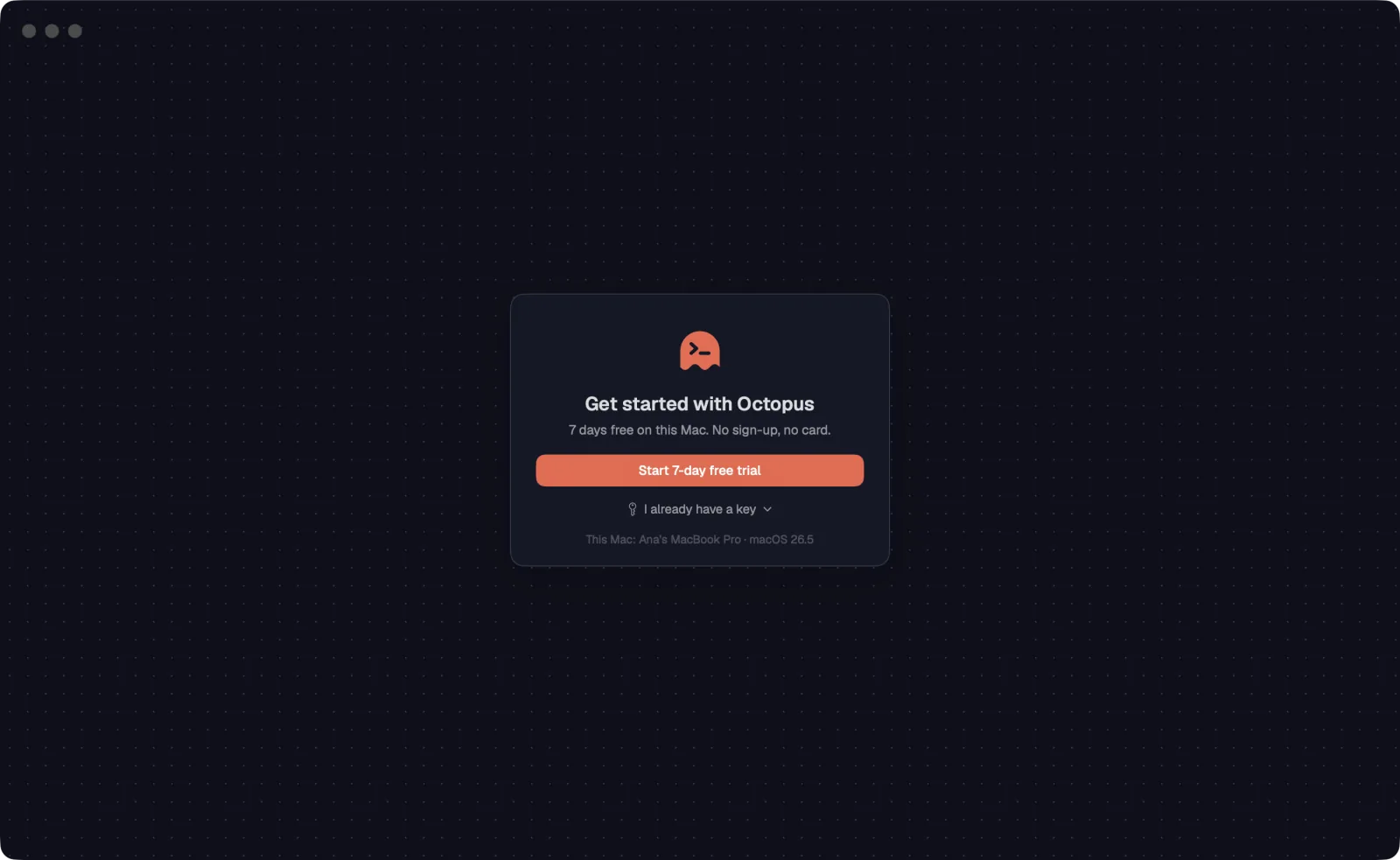
Anyone who installs Octopus gets everything for 7 days, with no sign-up, no email and no card. When the trial ends, nothing is deleted.
Step by step
- On the “Get started with Octopus” screen, click “Start 7-day free trial”.
- The bottom of the sidebar shows how many days are left (“Trial · 5 days”). Click there to see the license.
- In Settings › License, the Free trial card says when it ends.
- Already have a key? Click “I already have a key”, paste the key and click “Activate on this Mac” (“Activate on this computer” on Windows and Linux). During the trial, “Use a key” does the same: the key replaces the trial.
- When the trial ends, the “Your free trial has ended” screen offers “Buy 1 year” and “Use a key”. Workspaces, conversations and servers stay saved, just as you left them.
- Each computer gets one trial. If it was already used, Octopus asks for a key.
If you buy during the trial, the license year starts when the trial ends: you don't lose any days.
See alsoBuy in the app7-day free trial
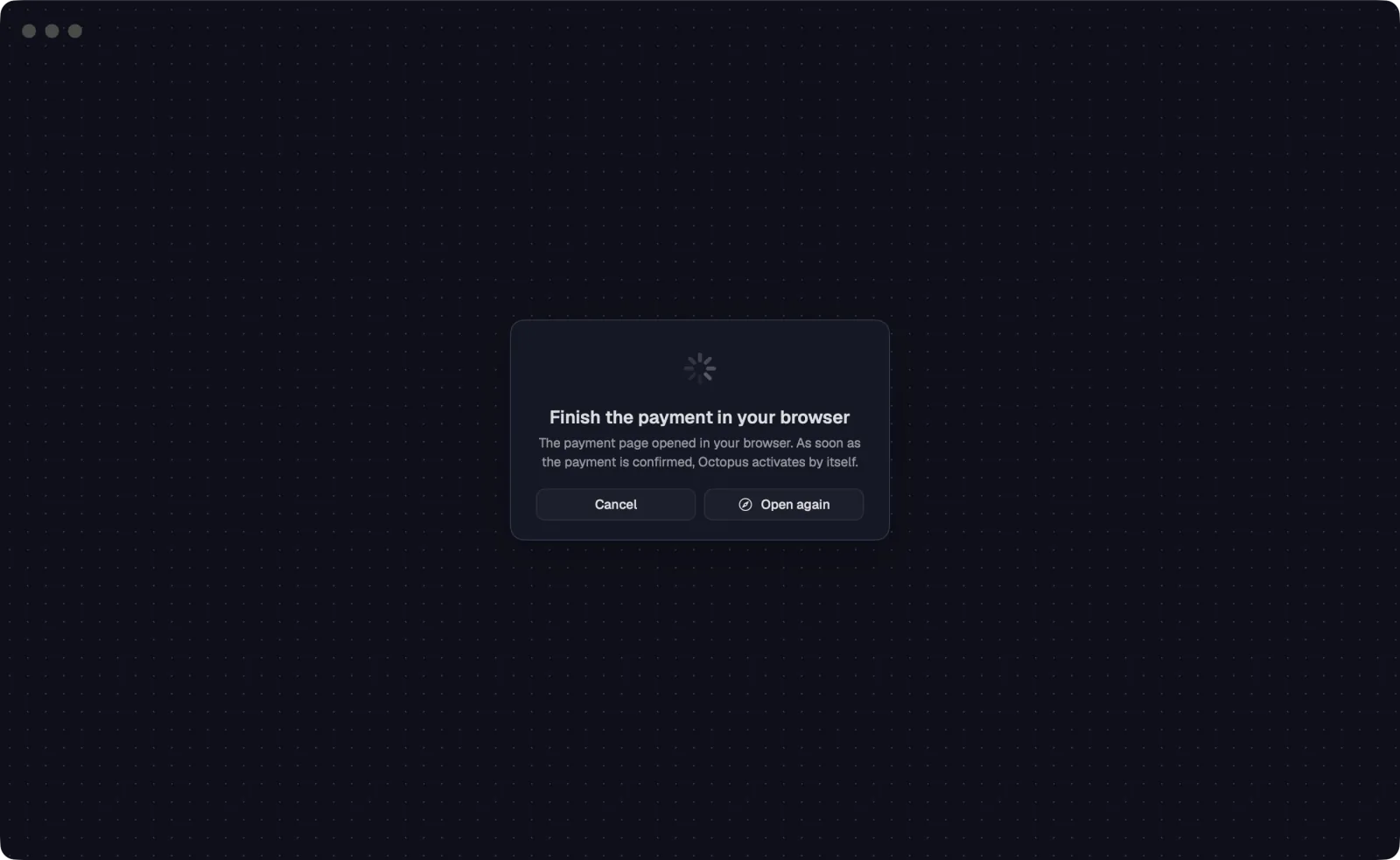
You buy the license inside Octopus. Payment opens in the browser and, once it's confirmed, the app activates by itself, with no key to copy.
Step by step
- Click “Buy” in Settings › License or “Buy 1 year” on the end-of-trial screen. To renew, “Renew” (on Windows and Linux, also on the notice that the license is about to expire).
- Payment opens in your browser. Stripe's payment page shows the methods available to you (card and the ones from your country).
- Octopus shows “Finish the payment in your browser” and waits.
- If the payment method takes a while to confirm, the window changes to “Waiting for the bank to confirm”. You can close it: the app activates by itself when the bank confirms.
- Once confirmed, “Done, Octopus is yours” shows up. The key also goes to your email.
- If the payment doesn't go through, nothing is charged. Try again, with another card or another payment method.
You can also buy on the website: the key shows up on the page and arrives in your email. In the app, paste the key in “Use a key” (or “I already have a key”, on the first screen).
See alsoPrice and what's includedRenew
The license costs R$ 497 a year in Brazil and US$ 97 in other countries. It's a single payment: no subscription and no automatic renewal.
Step by step
- It includes all of Octopus, with no limit on agents, workspaces or servers.
- It works on Mac, Windows and Linux, on up to 2 computers.
- It includes every update for the year.
- It has a 7-day guarantee: if you don't like it, you get your money back and the license is deactivated.
- Octopus is sold by Smartery LLC, and payment goes through Stripe.
The same license works on Mac, Windows and Linux, on up to 2 computers at a time. To use it on a third one, deactivate one of them.
Step by step
- To activate on another computer, install Octopus there, click “I already have a key” and paste the same key.
- Settings › License shows how many computers the license is on, like “2 of 2”.
- With every seat taken, activation warns “This key is already on every computer it allows. Ask for one of them to be freed.”
- To free a seat, open Settings › License on the computer that's leaving and click “Deactivate on this Mac” (or “Deactivate on this computer”). Confirm with “Deactivate”.
- The seat is freed, and that computer asks for a key to open again. Nothing on it is deleted.
See alsoSettings › LicenseRequirements
The license is valid for one year. Octopus tells you when there are 30, 7 and 1 days left, and renewing adds another year to the time still left.
Step by step
- In the last 30 days, the bottom of the sidebar shows “Ends · N days”. Click there to renew.
- Or open Settings › License and click “Renew”.
- Pay in the browser, as when buying. Once it's confirmed, “License renewed” shows up.
- If the license expires, Octopus shows “License expired” with the way to renew. Your data stays saved.
See alsoBuy in the appSettings › License
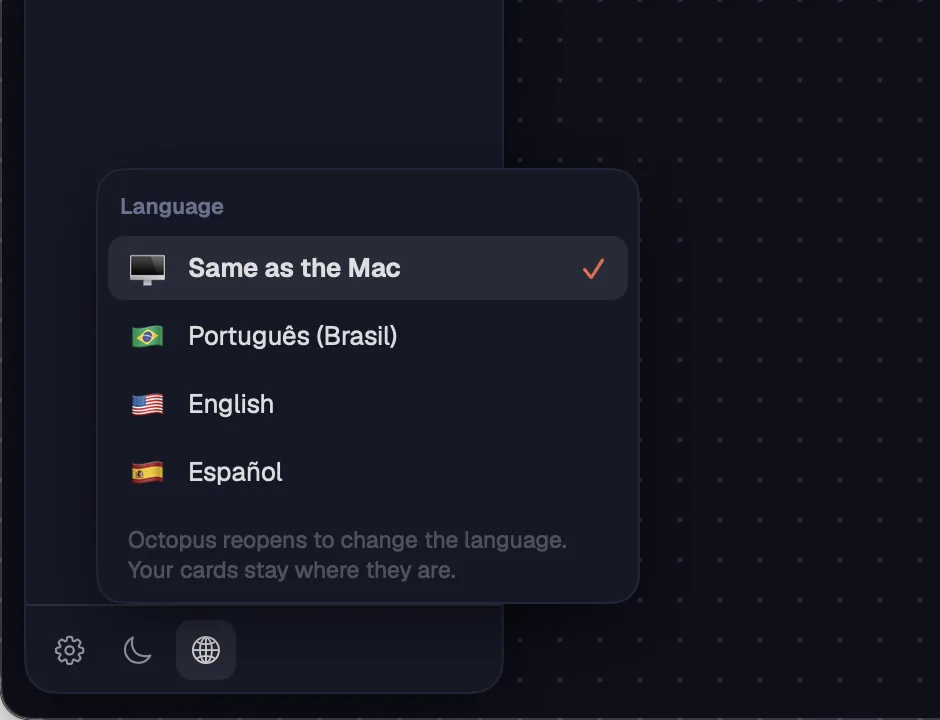
Octopus speaks Portuguese, English and Spanish. It follows the system's language until you pick another one.
Step by step
- Click the globe at the bottom of the sidebar, or open Settings › General › Language.
- Choose “Same as the Mac” (“Same as the system” on Windows and Linux; in the Windows sidebar globe, “Same as Windows”), “Português (Brasil)”, “English” or “Español”.
- Confirm with “Reopen now”. The app reopens in the new language; terminals and chats keep running in their sessions.
- The product and agent names stay in English: Claude Code, Codex, Maestro, Effort, Ultracode and the model names.
- Nothing inside terminals is translated: what the agent and the shell write shows up as they write it.
- The notes for each new version show up in your language.
See alsoGeneral
Octopus runs on your machines, with your accounts, and sends no telemetry.
Step by step
- Conversations, notes, drawings and files stay on your computer and your servers.
- Agents use your Claude and ChatGPT accounts, or your API key.
- Server passwords and SSH keys and the Gemini key stay only in the system vault (on the Mac, the Keychain).
- Your voice goes to Gemini with your key, and the audio isn't stored.
- Each gcloud account lives in its own folder; your gcloud doesn't change.
- What talks to Octopus's servers: the license check (when the app opens and every hour), purchases and the update check.
See alsoThe Gemini keyocto gcloud, from a server tooPasswords and keys in the vault