Docs › Files and Git
Files and Git
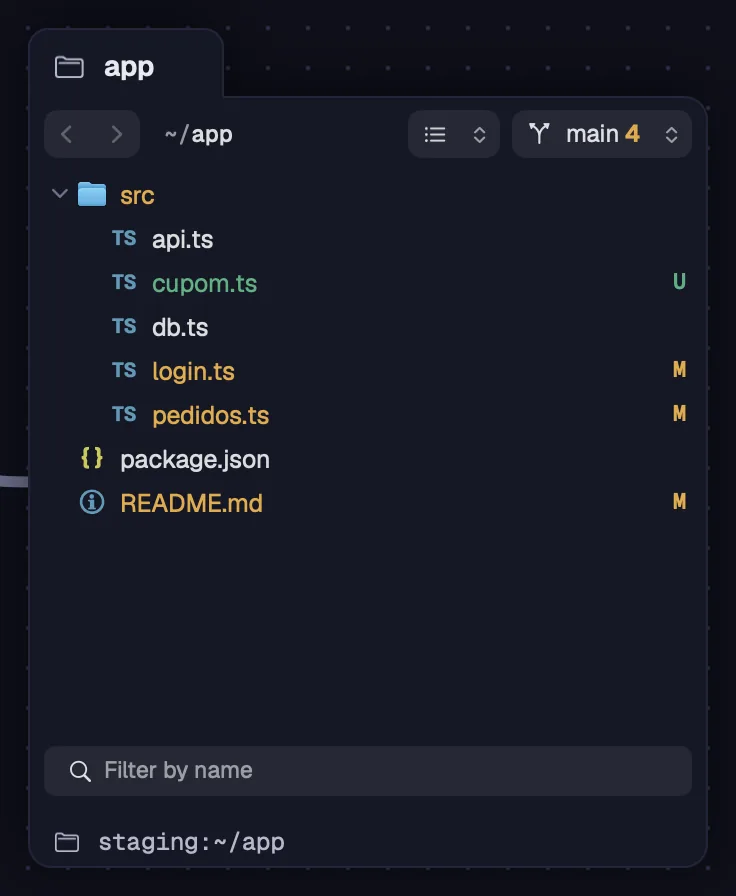
The file tree shows a folder on your computer or on a server, in git's colors. A file opens in a panel alongside, with search and diff, and a piece of it goes to an agent with your question. Commit, branches, merge and stash live in a menu on the tree itself.
A tree shows a folder on your computer or on a server and lets you browse it right on the canvas. Linked to a terminal, it follows the agent's machine.
Step by step
- Press F with nothing selected and click the canvas (or draw the size). In the “New file tree” sheet, choose “Where” (your computer or a server) and the “Folder”, and click “Create”.
- From a terminal, press ⇧⌘ECtrl+Shift+E (“Folder File Tree”). The tree opens next to it, in the folder the terminal is in, linked to it.
- In the Tabs view, the “+” has “File tree…”.
- One click opens or closes a folder. Double-clicking a file opens the file panel.
| File tree tool | F |
| Tree of the terminal's folder | ⇧⌘ECtrl+Shift+E |
A tree only links to a terminal on the same machine. Once linked, it goes to any folder there, but not to another machine: unlink the cable to switch.
See alsoBar, view and filterFile panel
At the top, the tree has back and forward, the path, the view menu and the git chip. At the bottom, a filter by name.
Step by step
- Use back and forward to move between the folders you opened.
- In the path, paste another one and press ↩ to go there.
- In the view menu: “All files” or “Changed only” (the files git sees as changed, with their folders), “Show hidden”, “Parent folder”, “Refresh”, “Machine” (switch to another computer or server) and “Go to folder…”.
- In “Filter by name”, at the bottom, type part of the name: the list shows only what matches, across all loaded folders.
- Rows are in git's colors, and each file has its language's icon.
With the tree selected, the arrows move through the rows, → opens a folder, ← closes it or goes up, and a letter jumps to the row that starts with it.
See alsoGit in the treeItem menu
Drag items from one tree to another and they're copied, also from your computer to a server or from one server to another. The progress shows at the bottom of the canvas.
Step by step
- Drag files or folders from one tree and drop them on a folder in another. Dragging from Finder (or the file manager) to the tree works too.
- Or copy with ⌘CCtrl+C in the tree and paste with ⌘VCtrl+V in another folder, tree or machine.
- To move, use “Move to…”: choose “Where” and the “Folder” and click “Move”.
- If an item with the same name already exists, choose “Keep both”, “Replace” or “Cancel”.
- At the bottom of the canvas, each copy shows its name and progress. The × stops the copy.
| Copy items | ⌘CCtrl+C |
| Paste items | ⌘VCtrl+V |
Since 1.0.24, copying is safe: canceling never leaves an item half-done, a connection that drops midway doesn't leave an incomplete folder, and when you replace, the old item only goes away after the new one has arrived. On the Mac, dragging an item from a server to Finder downloads the file.
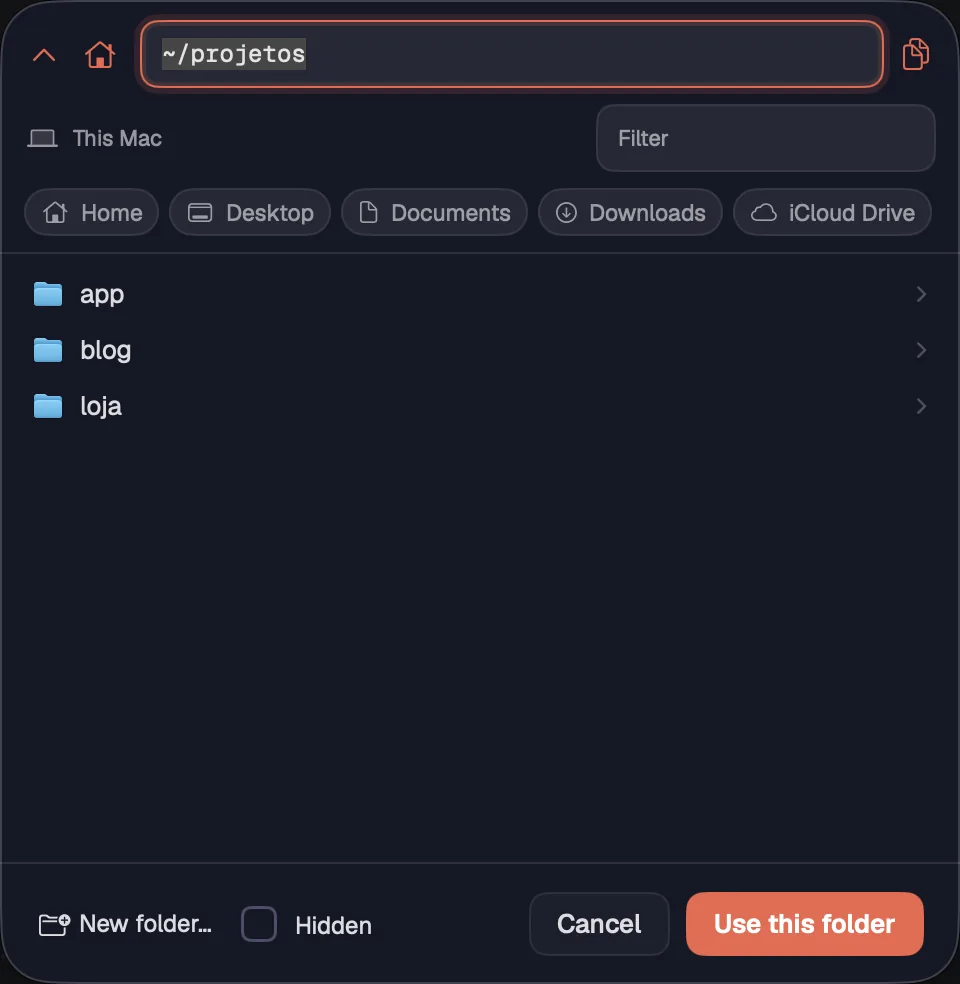
When you create a tree or move items, the “Folder” field opens a picker that browses your computer or the chosen server. On your computer, the places row takes you to the usual folders in one click. The places row and “New folder…” arrived in 1.0.27.
Step by step
- Click the “Folder” field. One click on a folder goes into it.
- Use the up-arrow button (“Parent folder”, ⌘↑Alt+↑) and the house button (“Home folder”), or paste a path at the top and press ↩.
- On your computer, the places row goes straight to Home, Desktop, Documents, Downloads and the cloud folder: iCloud Drive on the Mac, the OneDrive folders on Windows.
- “Filter” finds a folder by name, “Hidden” shows hidden folders and “New folder…” creates a folder there and goes into it.
- Click “Use this folder”.
| Parent folder | ⌘↑Alt+↑ |
See alsoOpen a file treeCopy and move between machinesChoosing the folder
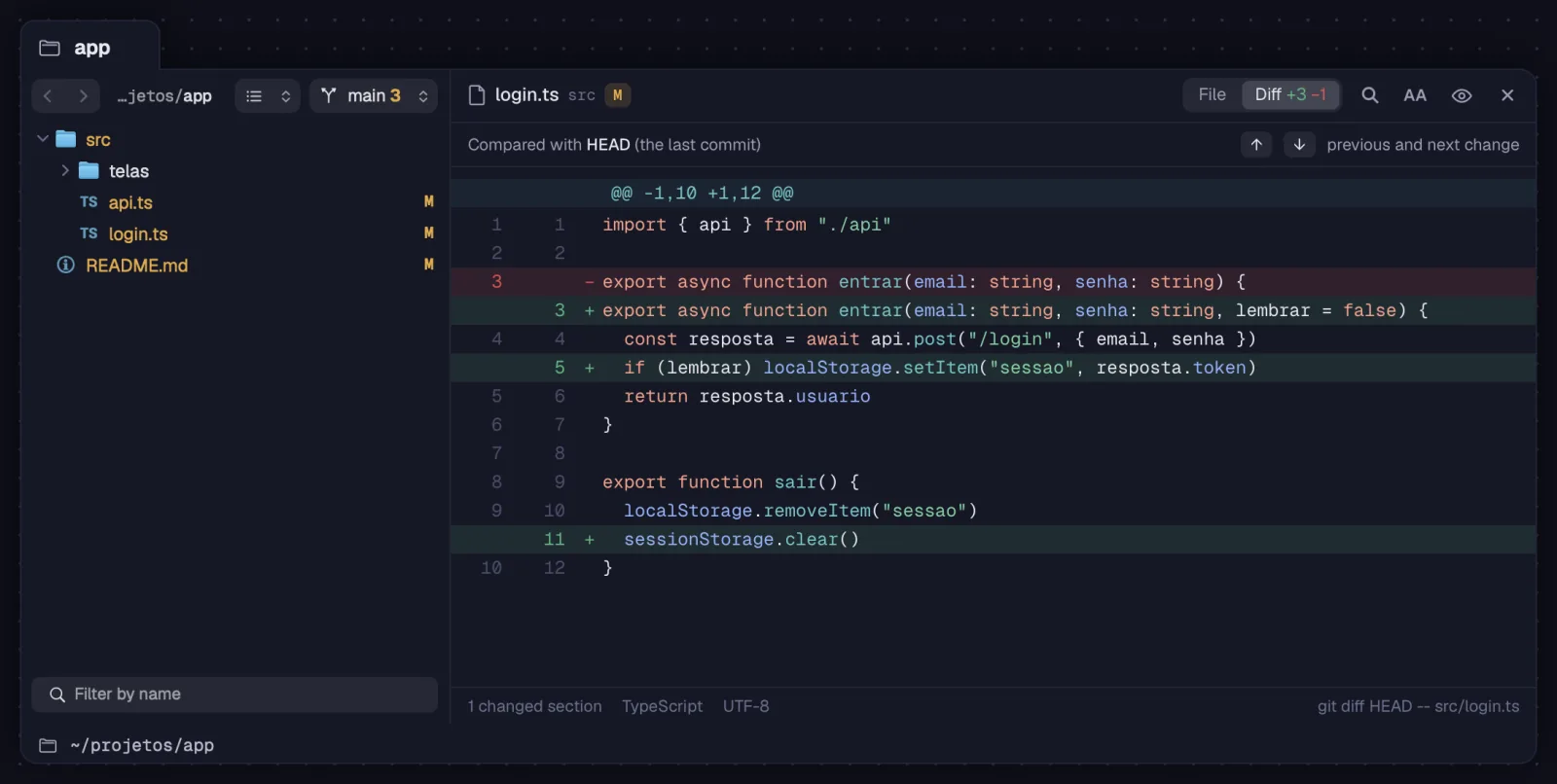
A file opens in a panel to the right of the tree, read-only, with code colors, search and diff. It updates by itself when the file changes.
Step by step
- Double-click a file (or use “Open in panel”). The card widens to fit the panel. A changed file opens straight in the diff.
- Switch between “File” and “Diff” at the top. The diff shows how many lines were added and removed, and the strip “Compared with HEAD (the last commit)”.
- In the diff, ⌥↑Alt+↑ and ⌥↓Alt+↓ (or the strip's arrows) go to the previous and next change.
- Search with ⌘FCtrl+F: ↩ goes to the next match, ⇧↩Shift+↩ to the previous one and Esc closes the search.
- “AA” changes the text size, the eye opens Quick Look and the × closes the panel. The bottom shows the line, the column and the language.
| Search in the file | ⌘FCtrl+F |
| Previous change | ⌥↑Alt+↑ |
| Next change | ⌥↓Alt+↓ |
In standard mode, a tree with an open file takes up the whole view. Binary or very large files don't open in the panel, and it tells you why.
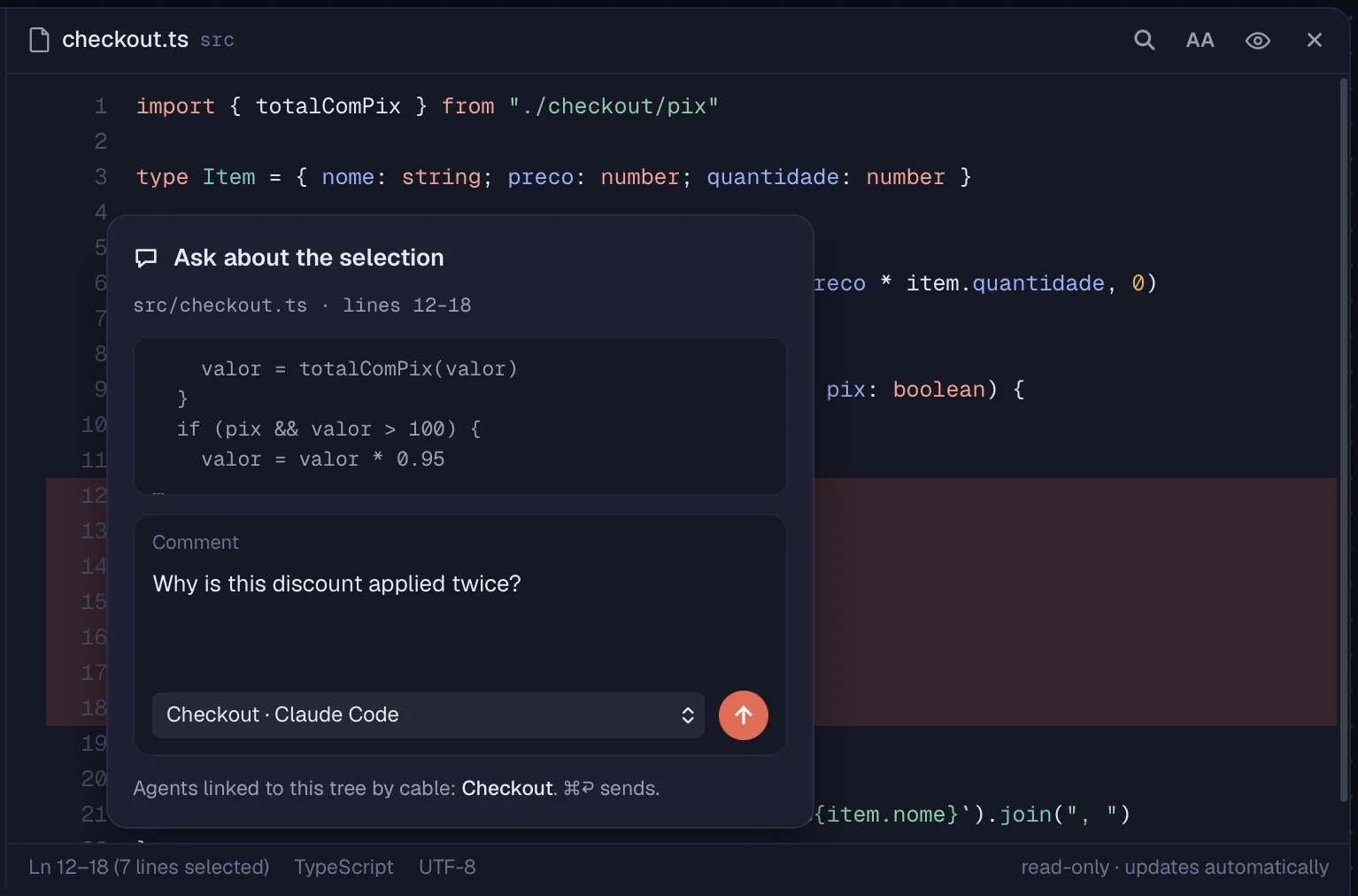
Select lines in the panel and send a question or a request about them to an agent, with the snippet attached.
Step by step
- In the panel, select the lines. A bubble shows up next to them: click it.
- In “Comment”, write what you want to know or ask about those lines.
- Pick the agent in the list next to the send button and send with ⌘↩Ctrl+↩.
- The agent gets the file, the lines and your comment.
| Send to the agent | ⌘↩Ctrl+↩ |
The list shows the agents linked to the tree by a cable. Without a cable, the question goes to the agents on the same machine.
See alsoFile panel
In a repository folder, the git chip shows the branch, how many changes there are and how many commits are left to push or pull. One click opens the git menu.
Step by step
- Look at the chip at the top of the tree: the branch name, the changes, ↑ (to push) and ↓ (to pull). During a merge, it turns red.
- Click the chip to see “Commit…”, “Pull”, “Push”, “Switch branch…”, “New branch…”, “Merge…”, “Fetch” and “Stash…”.
- “Pull”, “Push” and “Fetch” run right away. While git works, the chip spins; at the end, a notice says what happened, like “Push done”.
- If the remote has commits you don't have, Push warns you: pull first.
Octopus doesn't ask for git usernames and passwords (HTTPS). Use an SSH remote with a key or a credential helper on the machine.
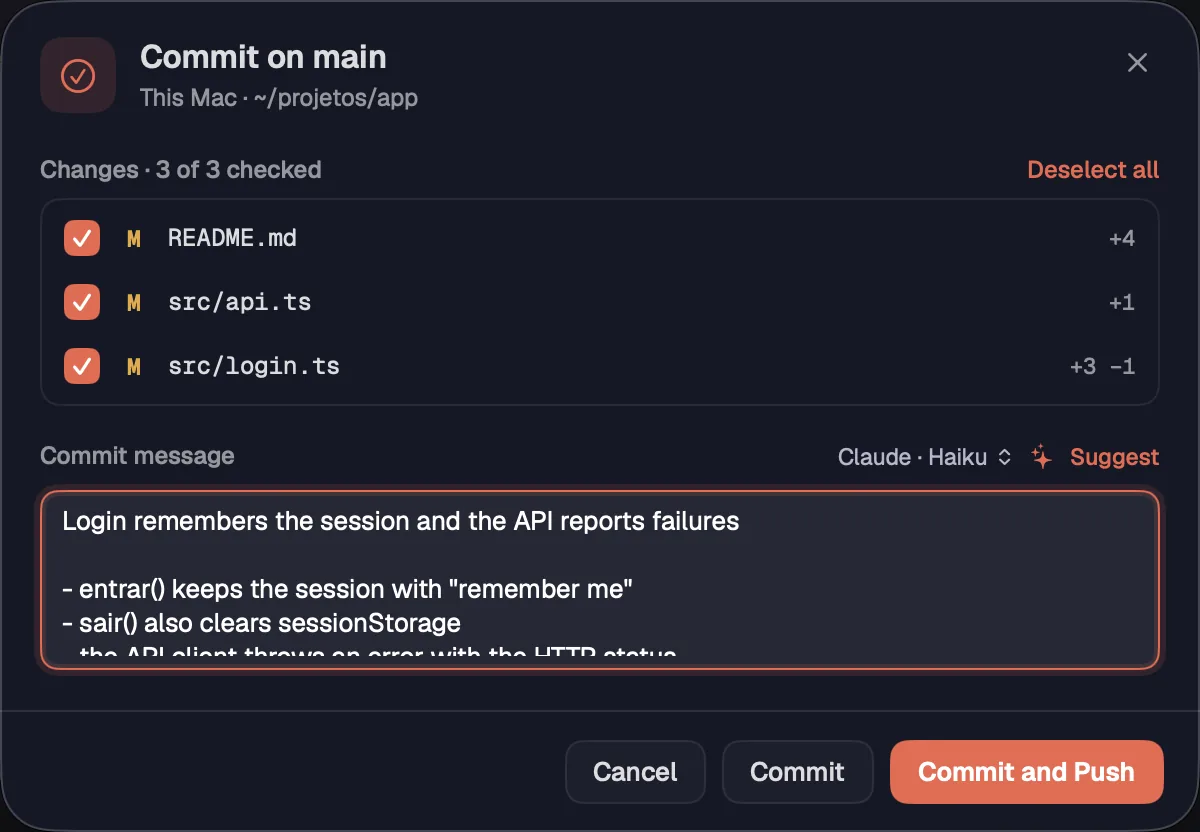
The commit sheet lists the changes to check, writes the message with an agent if you want and makes the commit, with or without a push.
Step by step
- In the git menu, choose “Commit…”. The number of changes shows next to it.
- Under “Changes”, check what goes in. “Check all” and “Deselect all” help. Very large files stay “left out of the commit” until you check them.
- Write the message or click “Suggest”: this computer's Claude Code or Codex reads the checked changes and writes it. In the menu next to it, choose who writes and the model.
- Click “Commit” or “Commit and Push” (⌘↩Ctrl+↩).
| Commit and Push | ⌘↩Ctrl+↩ |
If you have commits not pushed yet, the sheet says how many, at the bottom.
See alsoGit in the tree
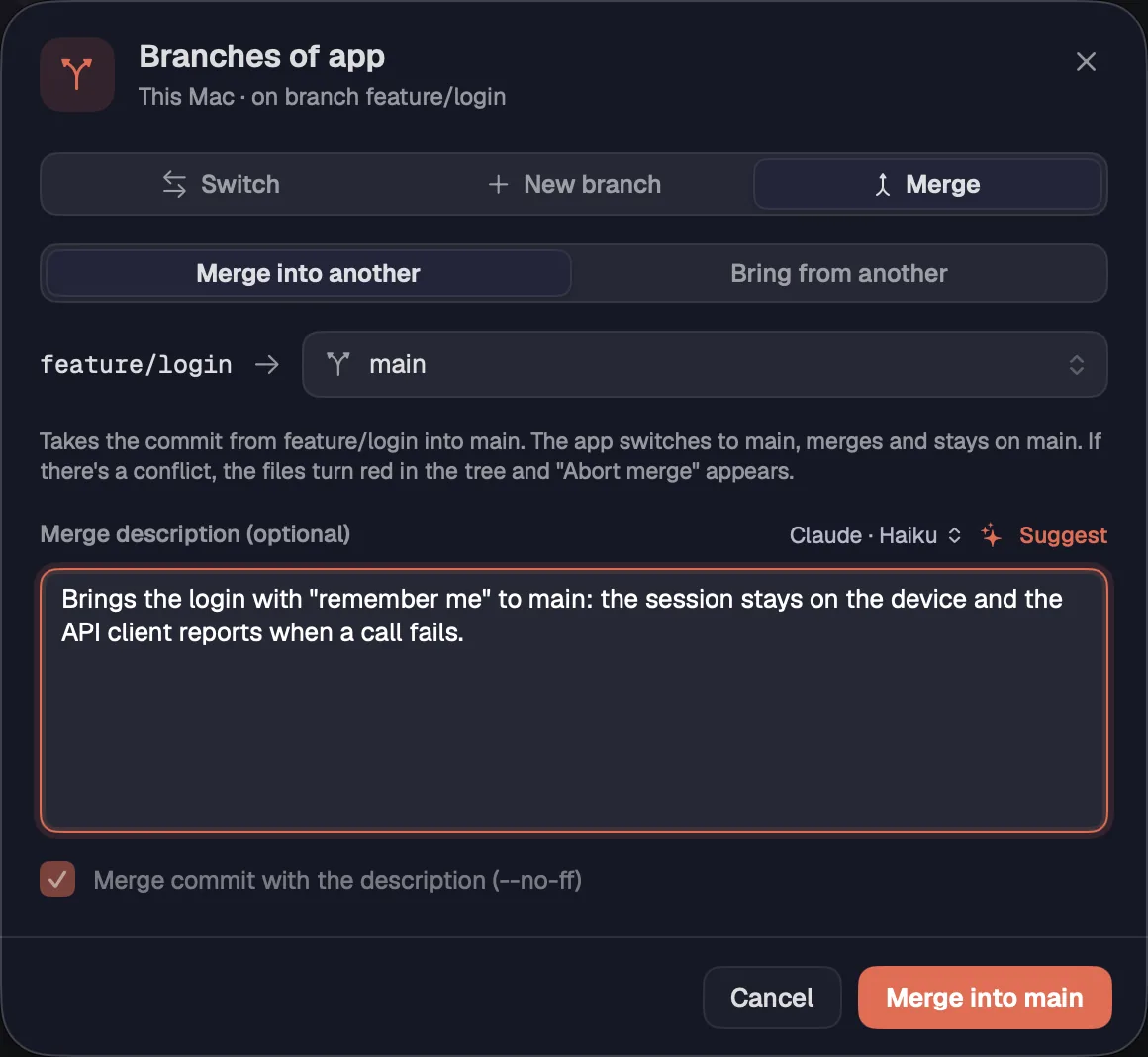
The branches sheet switches branches, creates a new one or merges, without opening a terminal.
Step by step
- In the git menu, choose “Switch branch…”, “New branch…” or “Merge…”. The sheet has three tabs: “Switch”, “New branch” and “Merge”.
- Switch: pick a local or remote branch and click “Switch to …”. If uncommitted changes would be lost, Octopus doesn't switch and tells you.
- New branch: give it a name (it starts from the current commit, and uncommitted changes come along), check “Switch to it now” and “Publish to the remote (push -u)” if you want, and click “Create branch”.
- Merge: choose “Merge into another” (take this branch into main, for example) or “Bring from another” (update this one). Pick the branch, write the description or use “Suggest”, and click “Merge into …” or “Merge”.
- When merging into another branch, Octopus switches to it, merges and stays there.
“Always create a merge commit (--no-ff)” keeps a merge commit. With a description, the merge always creates its own commit.
See alsoMerge conflicts
Set your changes aside to work on something else and bring them back later.
Step by step
- In the git menu, choose “Stash…”. The number next to it says how many are stashed.
- Write a message if you want and click “Stash changes”. Everything goes to the stash, new files too, and the folder goes back to the last commit.
- In the list, each stash has “Apply” (it stays in the list), “Apply and delete” and “Delete”.
See alsoGit in the tree
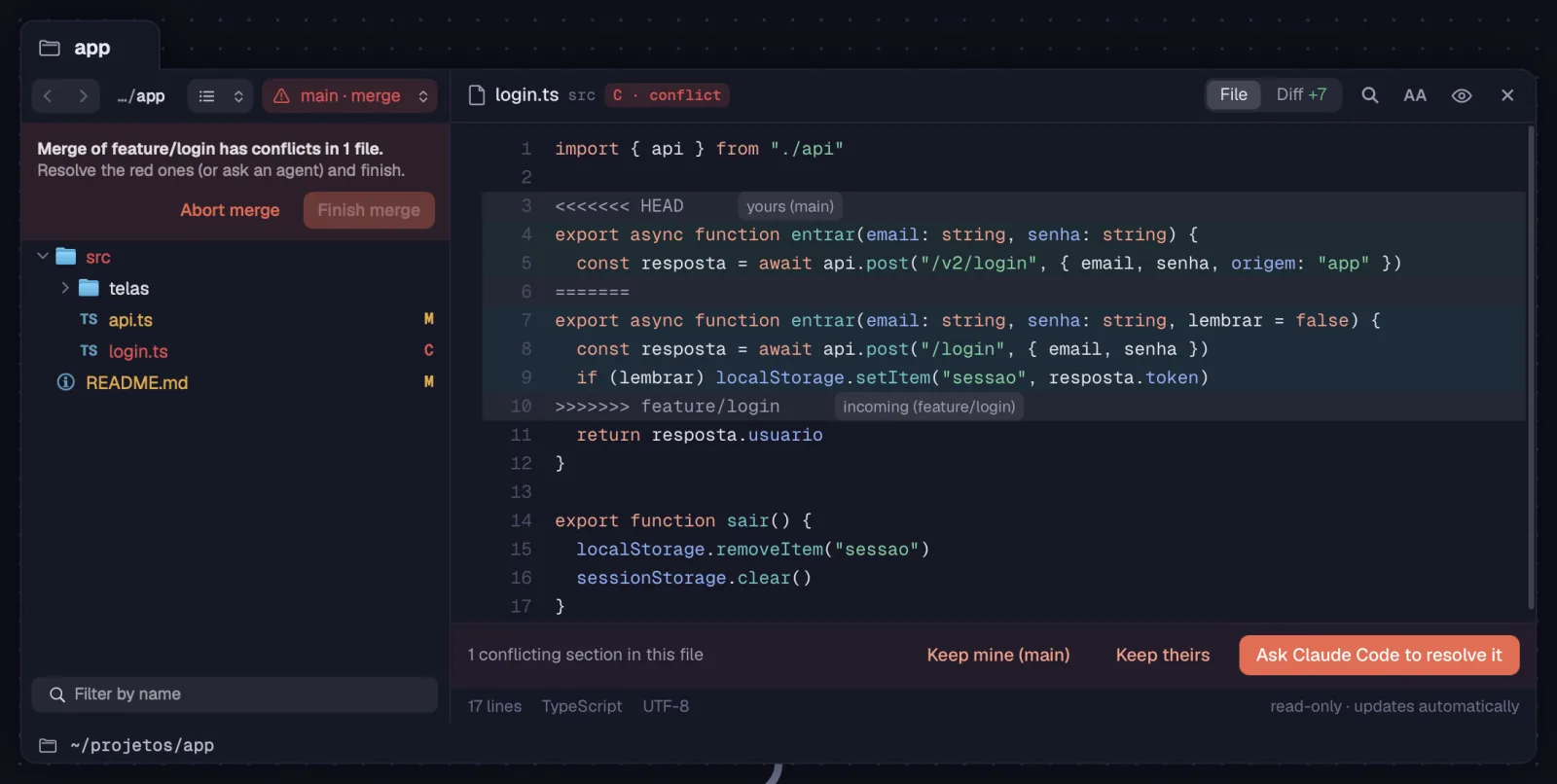
A merge with conflicts turns the files red in the tree. Resolve them in the panel, with one click or with an agent, and finish.
Step by step
- After the merge, the tree says how many files have conflicts, and they turn red (“C · conflict”).
- Open one of them: the panel shows the conflicting parts.
- Choose “Keep mine”, “Keep theirs” or “Ask … to resolve it”: a linked agent gets the file and the conflicts.
- Once everything is resolved, click “Finish merge” (in the tree's strip or in the git menu) and Octopus commits the merge. To give up, “Abort merge” leaves everything as it was before the merge.
See alsoBranches and mergeFile panel
If a git action fails, a panel below the canvas shows what failed, git's own words and what they mean.
Step by step
- Read the title (for example “Push rejected”) and the plain-language explanation below git's output.
- “Copy error” copies everything, so you can paste it to an agent.
- “Open terminal here” opens a terminal in the folder, on the same machine, so you can fix it by hand.
- The × closes the panel.
See alsoGit in the tree
See a file without opening its app: images, PDFs, videos and documents.
Step by step
- In a tree, select the file and tap Space (or use “Quick Look” in the right-click menu).
- On a file card on the canvas, select the card and give Space a quick tap. Holding Space pans the canvas.
- In the file panel, click the eye.
| Quick Look | Space |
On the Mac it's the system's Quick Look. On Windows and Linux, Octopus has its own viewer.