Docs › Chat
Chat
Claude Code and Codex also open as a chat, with the same conversation as the terminal. You see the steps grouped, answer permissions and questions with one key, switch model, mode and Effort, and keep an eye on the context and your plan's limits.
Every Claude Code or Codex has two faces with the same conversation: Octopus's chat and the agent's own interface, in the terminal. You switch from one to the other at any time.
Step by step
- In New terminal, leave “Show as chat” on so the agent opens in chat right away.
- On an open card, press ⌘JCtrl+Shift+J or use the chat | terminal switch in the card's bar. In the right-click menu: “View as chat” and “View as terminal”.
- On the Mac, with the agent working in the terminal, opening the chat asks first: “Open in chat now” interrupts what it's doing, and the conversation continues in chat.
- From chat to the terminal with something running: on the Mac, “Wait and open” switches on its own when everything finishes and “Open now” ends what's running; on Windows and Linux the card waits without asking, and Ctrl+Shift+J again opens it right away. While it waits, the chat shows “the terminal opens when it finishes”, and “Stay in chat” gives up.
| Toggle chat and terminal | ⌘JCtrl+Shift+J |
Commands that only exist in the agent's interface (like Claude Code's /doctor) stay in the terminal: switch faces to use them.
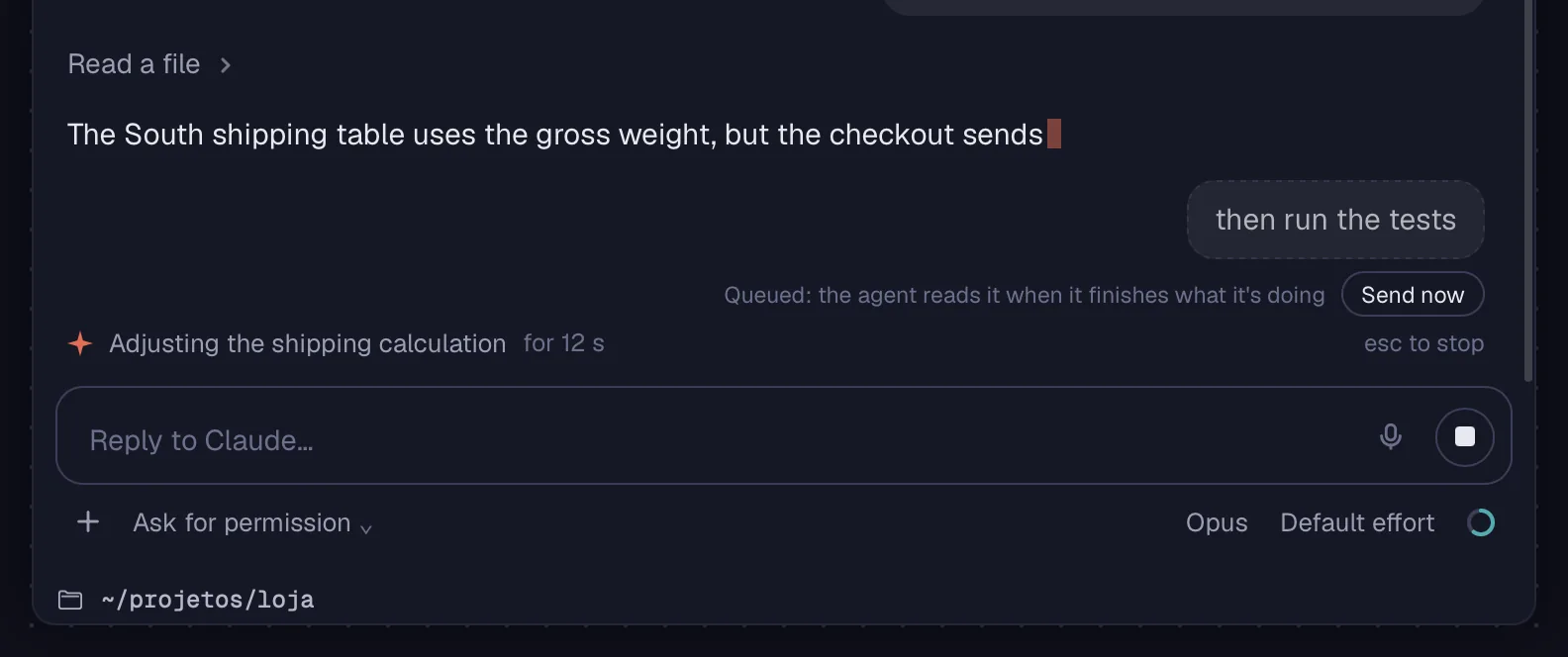
Write and send with Enter. While the agent works, your next message goes into the queue; if it's urgent, it jumps ahead.
Step by step
- Write in the box (“Reply to Claude…” or “Reply to Codex…”). ↩Enter sends. ⇧↩Shift+Enter starts a new line.
- While the agent is working, what you send is “Queued”: it reads it when it finishes what it's doing.
- To deliver it right away, click “Send now” on the queued message, or send with ⌘↩Ctrl+Enter: the agent interrupts what it's doing and reads the message.
- Esc or the stop button interrupt the agent. If it hadn't answered yet, your message goes back to the box, so you can change it and send it again.
- The microphone next to send dictates the message by voice.
| Send | ↩Enter |
| New line | ⇧↩Shift+Enter |
| Send now, interrupting | ⌘↩Ctrl+Enter |
| Stop the agent | Esc |
A message the agent never got to read, because it was stopped first, gets marked: “Not sent: the agent was stopped before reading it”.
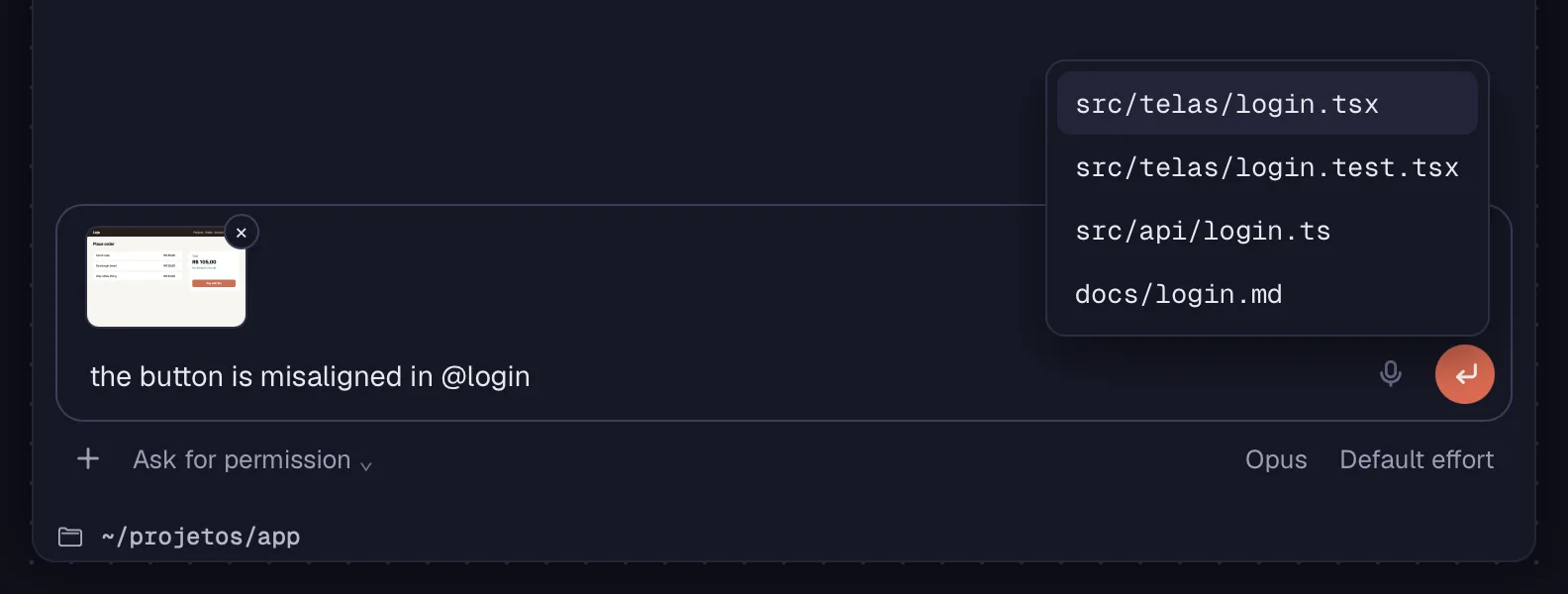
Send images along with your message and mention project files with @. Other files and folders go by their path.
Step by step
- Click the “+” (“Attach files”) and choose the files. Pictures go along with the message; other files and folders go by their path.
- You can also paste an image into the box or drag files from Finder (on Windows and Linux, from the file manager) onto the chat. The thumbnail shows up above the box; the × removes it.
- Type @ and part of the name to search for a project file. ↑ and ↓ choose; ↩Enter or ⇥Tab insert it.
- Large screenshots are shrunk before they go, and the conversation keeps responding while the image arrives.
See alsoPasting images and files into the terminalSend to an agent
The button on the left, below the box, says how much the agent can do without asking. Change it at any time, without losing the conversation.
Step by step
- Click the mode button, below the message box.
- In Claude Code: “Ask for permission”, “Accept edits”, “Plan” and “Auto”.
- In Codex: “Ask for permission” (asks before running commands that change something), “Auto” (edits and runs in the folder; asks to leave it or use the network), “Read only” and “Full access” (does everything without asking).
- In “Plan” mode, the agent finishes with the request “Approve the plan and start?”: “Approve” or “Keep planning”.
If the agent was opened in a mode that asks nothing, the button shows “Bypass permissions” or “Don't ask”.
See alsoPermissions: 1–9 and Esc
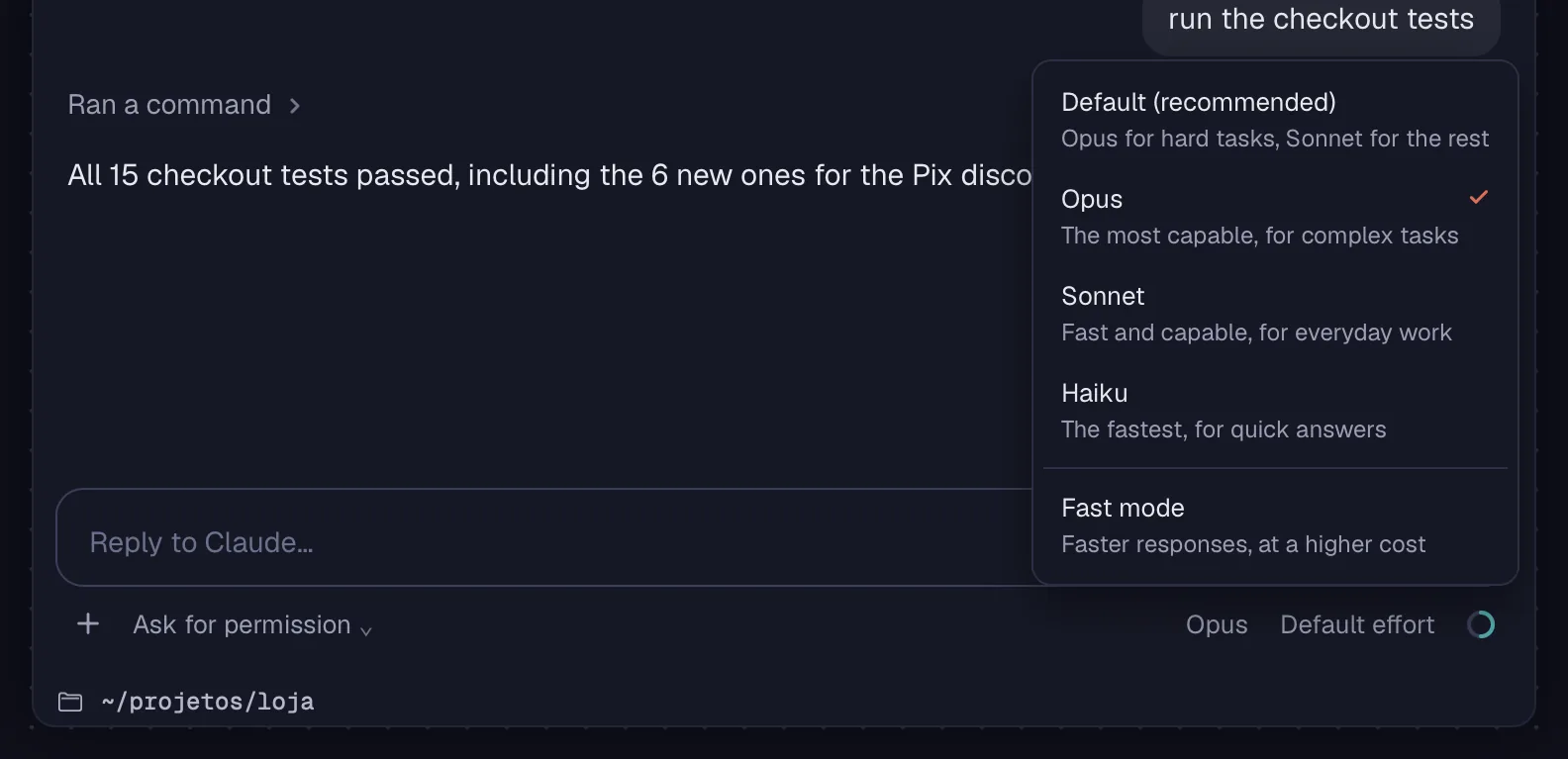
The model button lists the models the agent offers on your account. On models that have it, “Fast mode” gives faster answers, at a higher cost.
Step by step
- Click the model button, on the right, below the message box.
- Choose a model. The checked one is the current one.
- If the model has it, turn “Fast mode” on or off at the end of the list.
The list comes from the agent itself. Until it reports them, the menu says “The agent hasn't said which models it offers yet.”
See alsoEffort and Ultracode
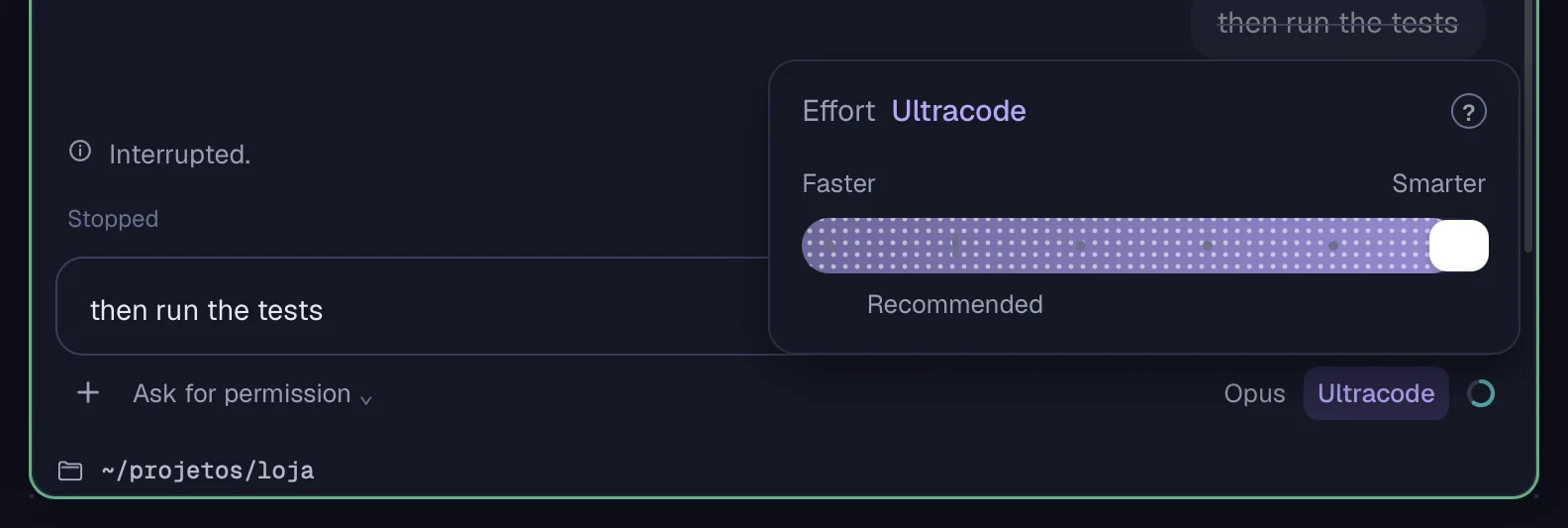
Effort is how much the model thinks before answering: to the left it answers faster, to the right it thinks more. At the end of the slider, Ultracode plans and splits the work among several agents.
Step by step
- Click the Effort button, next to the model.
- Click a mark on the slider. The levels depend on the model (None, Minimal, Low, Medium, High, Extra high, Max), and the recommended mark is highlighted.
- With no choice, “Model default” applies.
- At the right end, when Claude Code offers it, sits Ultracode. In Codex, the highest level also shows up as Ultracode.
With Ultracode, the agents' work shows up in the box above the message and in a Workflow card in the conversation.
See alsoWorkflow and background agents
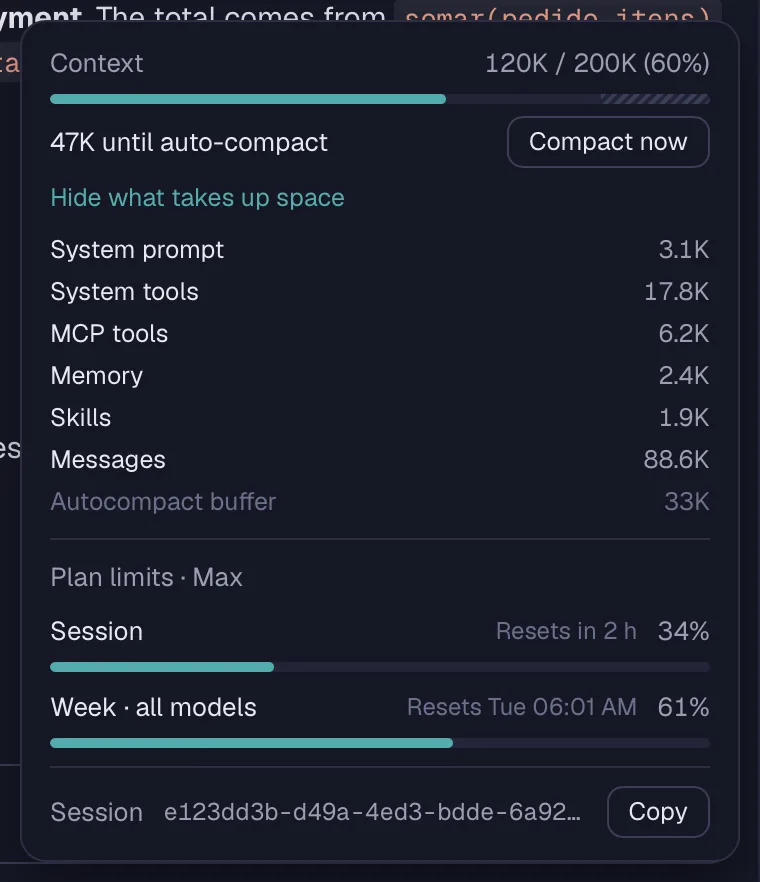
The ring in the corner shows how much of the context the conversation already uses. Click it to see what takes up space, compact the conversation on the spot and check your plan's limits.
Step by step
- Hover over the ring to see the percentage and the tokens. It changes color near the end.
- Click the ring. Under “Context”, the bar shows the usage and how much is left before the agent compacts the conversation on its own.
- “Compact now” compacts the conversation to free up space. It's grayed out while the agent works.
- “See what takes up space” lists the parts: system prompt, tools, MCP, memory, skills, messages and the autocompact buffer.
- Under “Plan limits”, each limit shows the percentage used and when it resets, like “Resets in 2 h”.
- Under “Session”, the conversation's ID, with “Copy”.
In Codex, compacting is also in the “/” menu, as /compact.
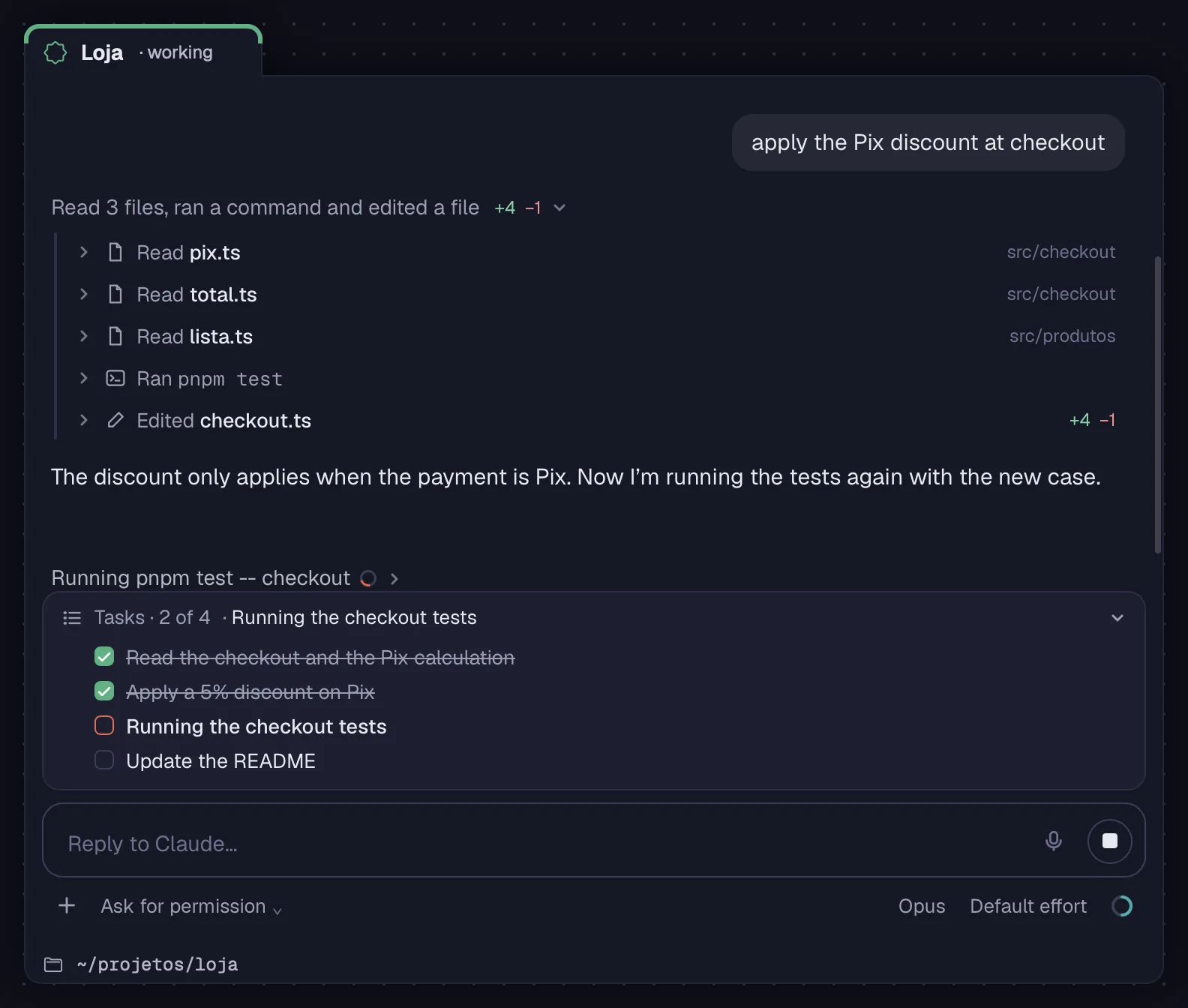
Like in Claude Code, what the agent does shows up in short steps, grouped on one line: read, ran, edited, searched. Its task list stays pinned above the box.
Step by step
- Each line says what the agent is doing now (“Reading”, “Running”, “Editing”) and, when it's done, what it did (“Read”, “Ran”, “Edited”, “Searched”, “Searched the web”). Edits show the lines added and removed; failures are marked.
- Click a line to open its steps: the command, the file, the result.
- Subagents and workflows show up as steps of their own.
- “Tasks · 2 of 4” tracks the agent's task list, above the box.
- At the end of each answer, a line sums up the turn, like “Done in 1 min 20 s”. With an API key, it also shows the cost in dollars.
- When you're reading further up, the “Go to the end” arrow takes you back to the latest message.
See alsoWorkflow and background agents
Copy the text of an answer, in markdown, with one click. The conversation's ID is in the context panel.
Step by step
- Hover just below an answer and click “Copy the answer”.
- For the conversation's ID, click the context ring and use “Copy” under “Session”, or right-click the card › “Copy session ID”.
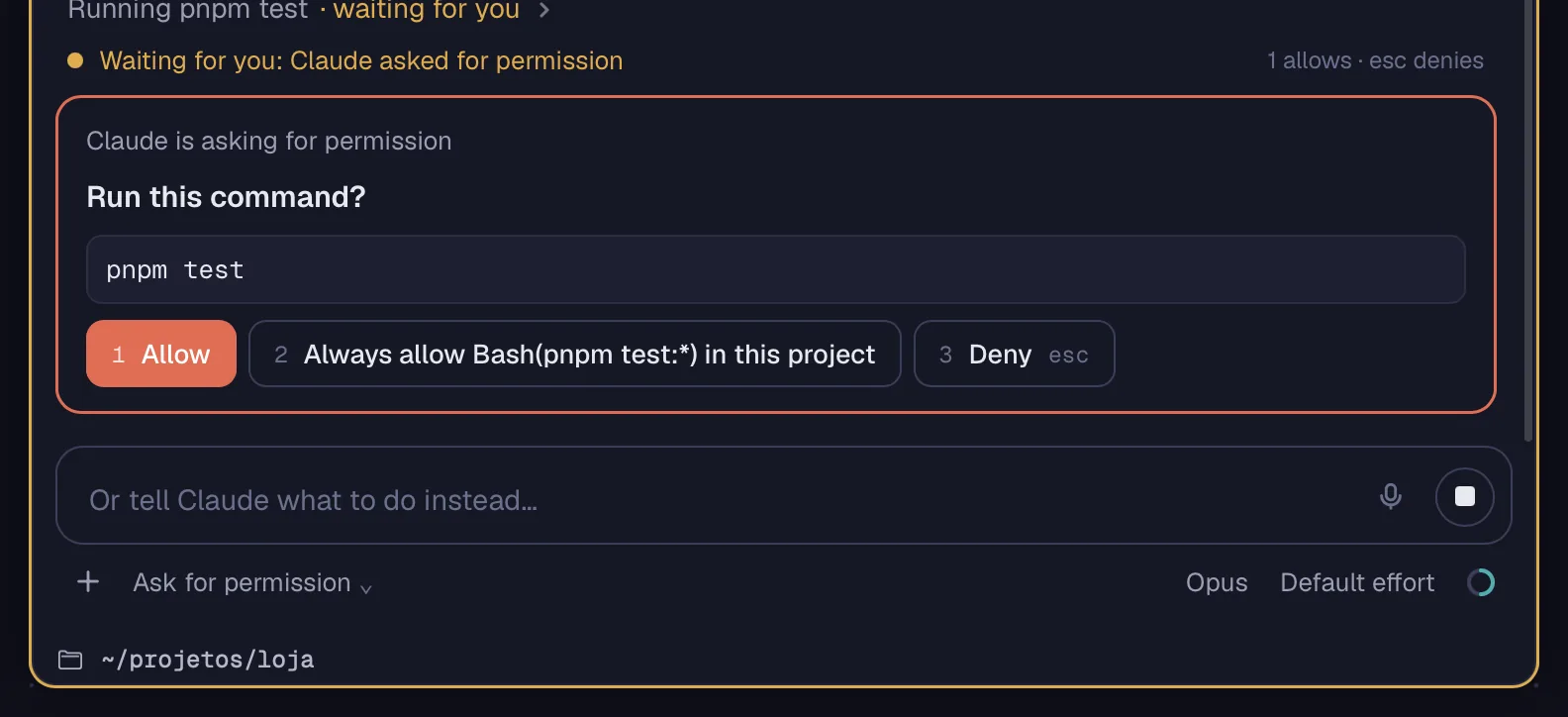
When the agent asks to run a command, edit a file or open an address, the request shows up at the end of the conversation, with numbered options. One key answers.
Step by step
- The request says what it is, with the details below: “Run this command?”, “Edit checkout.ts?”, “Open this address?”, “Search the web?” or “Approve the plan and start?”.
- Press 1 to “Allow” (for a plan, “Approve”).
- The next numbers are the agent's suggestions, like “Always allow” a command for this session or this project, or “Allow” a folder.
- Esc or the last option deny it (for a plan, “Keep planning”).
- To deny and say what to do instead, write in the box (“Or tell Claude what to do instead…”) and send.
| Allow | 1 |
| Deny | Esc |
The keys work while the message box is empty; with text in it, the numbers are just text.
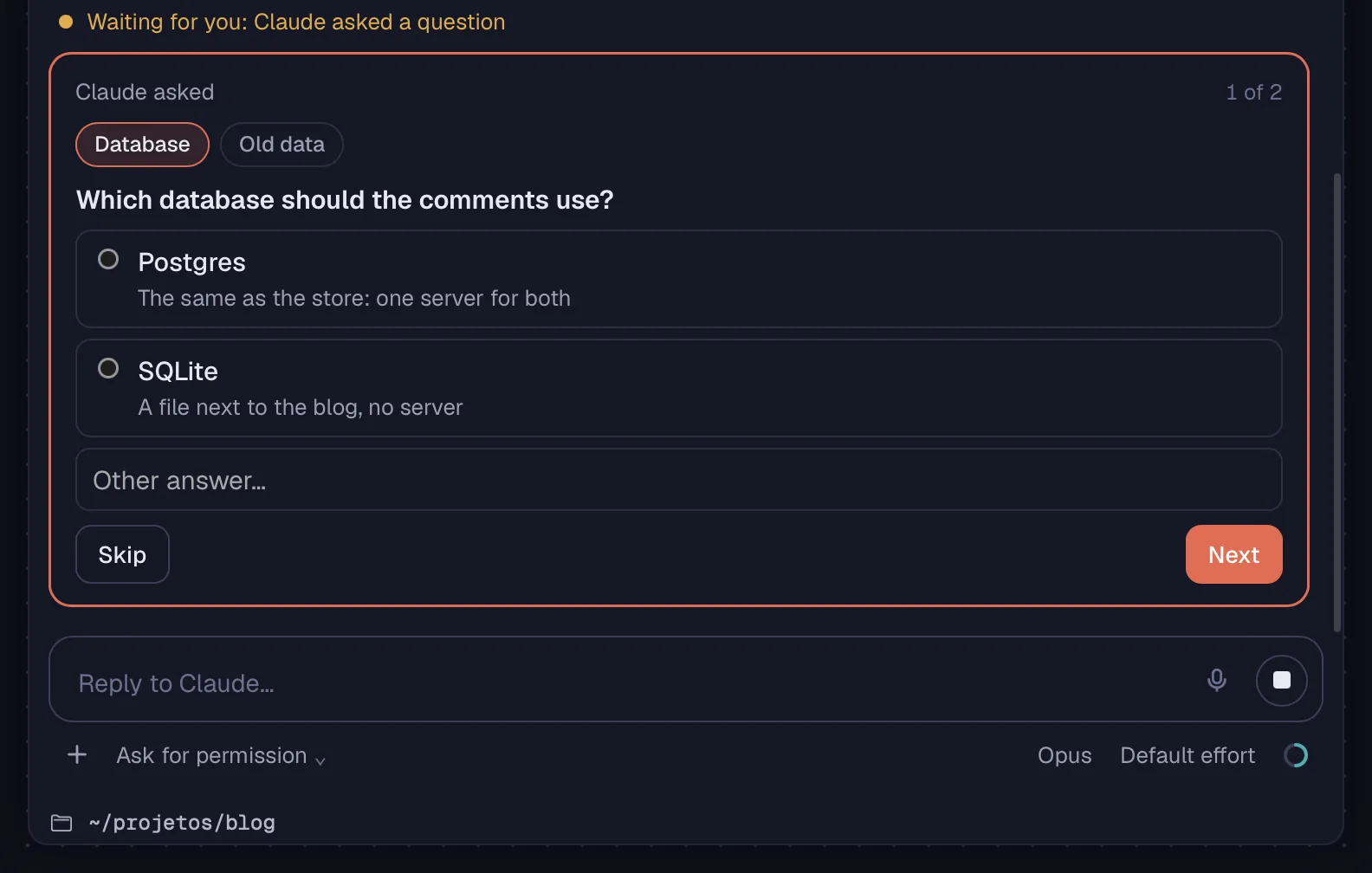
When the agent asks questions, they show up one at a time at the end of the conversation, with its options and room for another answer. What came before stays in view, above.
Step by step
- Read the question and click an option. With the keyboard outside the message box, the option's number also picks it. On a single choice, it moves on to the next question by itself.
- To answer something else, write in “Other answer…”.
- Use the tabs at the top, “Previous” and “Next” to review. On the last question, “Answer” sends everything.
A tab gets a done mark when its question already has an answer.
See alsoPermissions: 1–9 and Esc
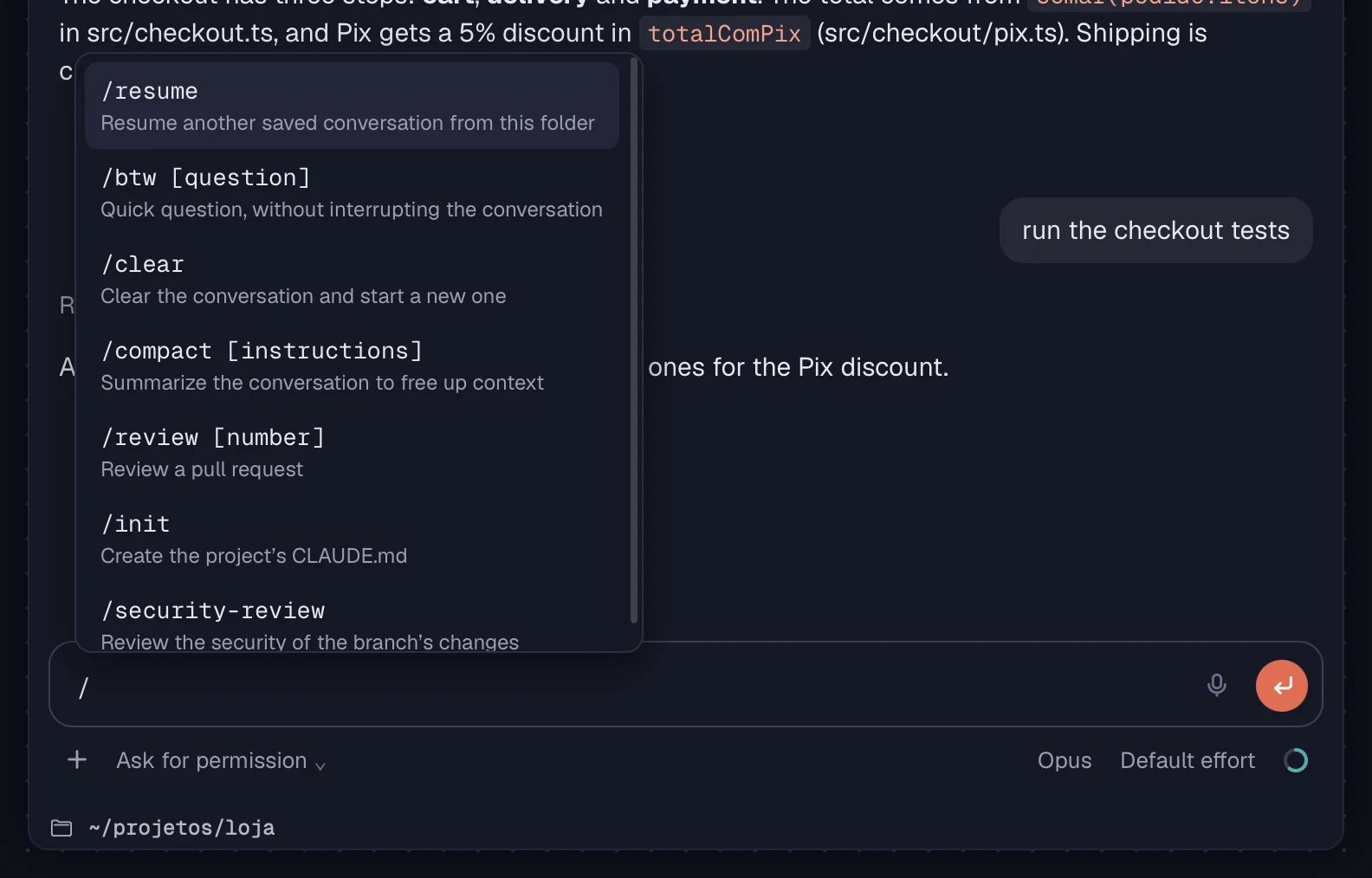
Type / to see the agent's commands and Octopus's. /resume opens another saved conversation from the folder, and /btw asks a quick question without interrupting the work.
Step by step
- Type / in the box. The list brings the agent's own commands (in Claude Code, for example, /clear, /compact and /review) and Octopus's, and filters as you type, including by aliases (/new finds /clear). ↑ and ↓ choose; ↩Enter uses it.
- “/resume” (“Resume another saved conversation from this folder”) lists the conversations the agent saved in the folder, with each one's age, and opens the chosen one in the same card.
- “/btw” plus a question, in Claude Code (since 1.0.20): the answer shows up in a panel above the box and doesn't go into the conversation. Esc closes the panel.
- In Codex, the menu also brings its skills and /compact, which compacts the conversation.
Commands that only work in the agent's interface don't show up in chat. For those, switch to the terminal.
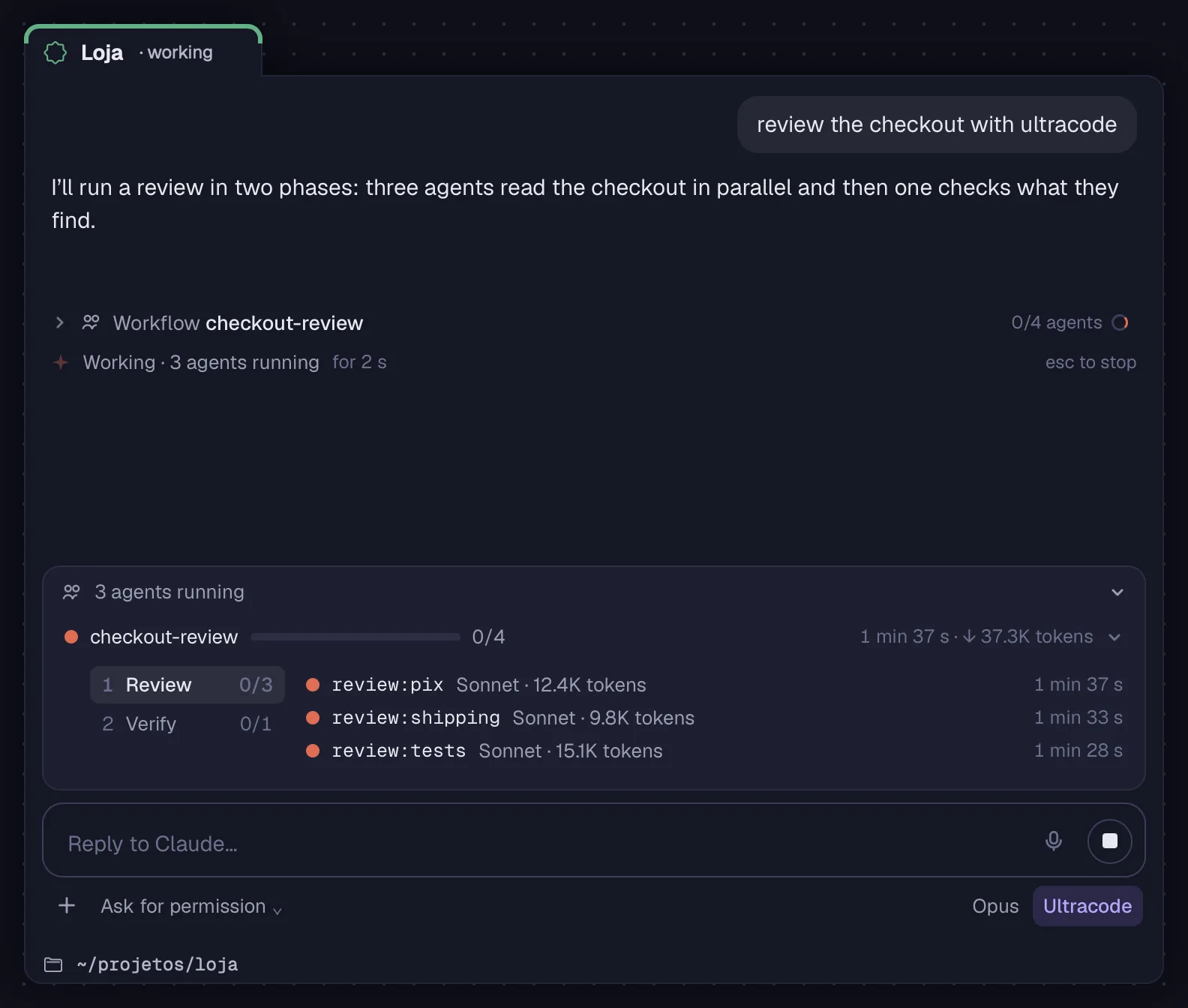
A box above the message shows the subagents and workflows running, like the footer of Claude Code's terminal. Each Workflow has its own card in the conversation, with phases, agents, time and tokens.
Step by step
- When the agent sets subagents or a workflow running, the “2 agents running” box shows up above the message. Click the title to collapse or open it.
- Each line says what that agent is doing, for how long and how many tokens it has used.
- A Workflow shows up in the conversation with its name, description and script; opened, it shows the phases and each one's agents.
- Between one answer and the next, the status line lists what was left running: “In the background: …”.
What you typed and didn't send is kept in each chat and comes back when Octopus opens again.
Step by step
- Start a message and leave it for later. It stays in that card's box.
- Even if you quit Octopus, the draft comes back next time.
Stopping the agent before it answers also puts your last message back in the box.
See alsoThe message box
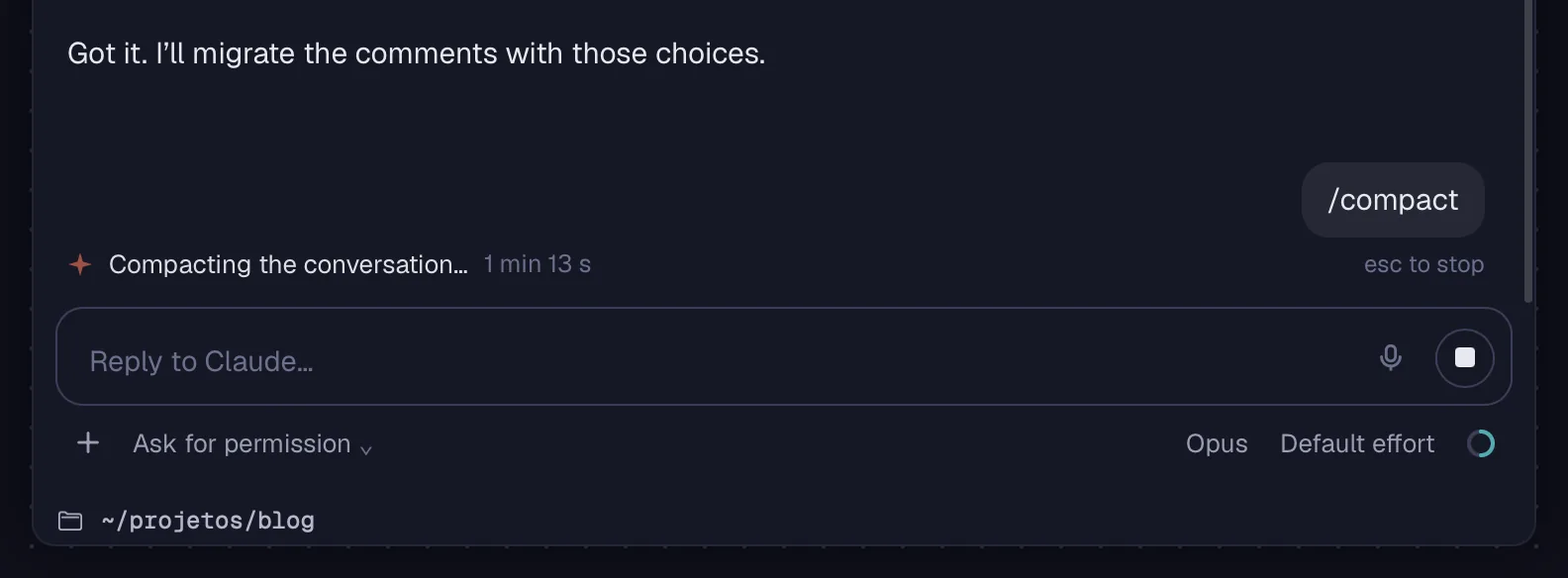
The status line, at the end of the conversation, says what the agent is doing now and for how long. When something is out of the ordinary, it tells you and offers the next step.
Step by step
- “Working” (or whatever the agent is doing) with the time and “esc to stop”. While it thinks, “Thinking…”. When it needs you: “Waiting for you: Claude asked for permission” or “asked a question”.
- “No word from Claude for…”: it has been quiet for a long time. “Reconnect” redoes the connection to the agent.
- “Compacting the conversation…” (or “Context full: compacting the conversation…”), with the time. At the end, the line “Conversation compacted”.
- At the top of the card: “No connection to the agent.” with “Try again”, or “Claude Code stopped (code 1).” with “Restart”. The “Terminal” button shows the agent in its own interface.
- At the end of a turn: “Stopped” (the turn was interrupted), “Stopped: step limit” or “Finished with an error”.
- If the chat reconnects in the middle of an answer, it tells you when the answer finishes.
When Claude Code stops because of a usage limit, an account problem or an API error, the card also lets you know in “Needs you”.
See alsoStopped: usage limit, account or API errorContext and plan limits