Docs › Alerts and Now
Alerts and Now
Claude Code and Codex work on their own for minutes at a time. Octopus tells you when one of them asks for a permission, asks a question or finishes, in any workspace. The Now panel brings together in one place what is waiting for you and what is running.
An alert has two colors. Amber: the agent needs you, with a permission, a question or a plan to approve. Green: the turn is over and nothing will continue on its own. It works for Claude Code and Codex, in the terminal and in chat.
Step by step
- Leave a Claude Code or Codex working and go do something else, even in another workspace.
- When it asks for something, the card's border turns amber and the tab says “· waiting for you”. The alert gives the reason: “Asked for permission” or “Asked”. A permission requested by a subagent and a question from an MCP server count too.
- “Message not sent” is amber too: your message didn't reach the agent and is waiting for “Try again”.
- When it finishes, the border turns green and the reason is “Done”, with the agent's last words. If its last sentence is a question, the reason is “Asked”, also in green. If the conversation was compacted at the end, the text is the line “Conversation compacted”.
- Octopus's approval requests are also amber on the card of the agent that asked: “Asked to run on …” (a command in a linked shell), “Asked to use …” (a cloud account) and “Asked to send a WhatsApp message”.
When a Maestro's recruit finishes, the alert goes to the Maestro, and the Maestro tells you. A permission request or a question from the recruit calls you as usual.
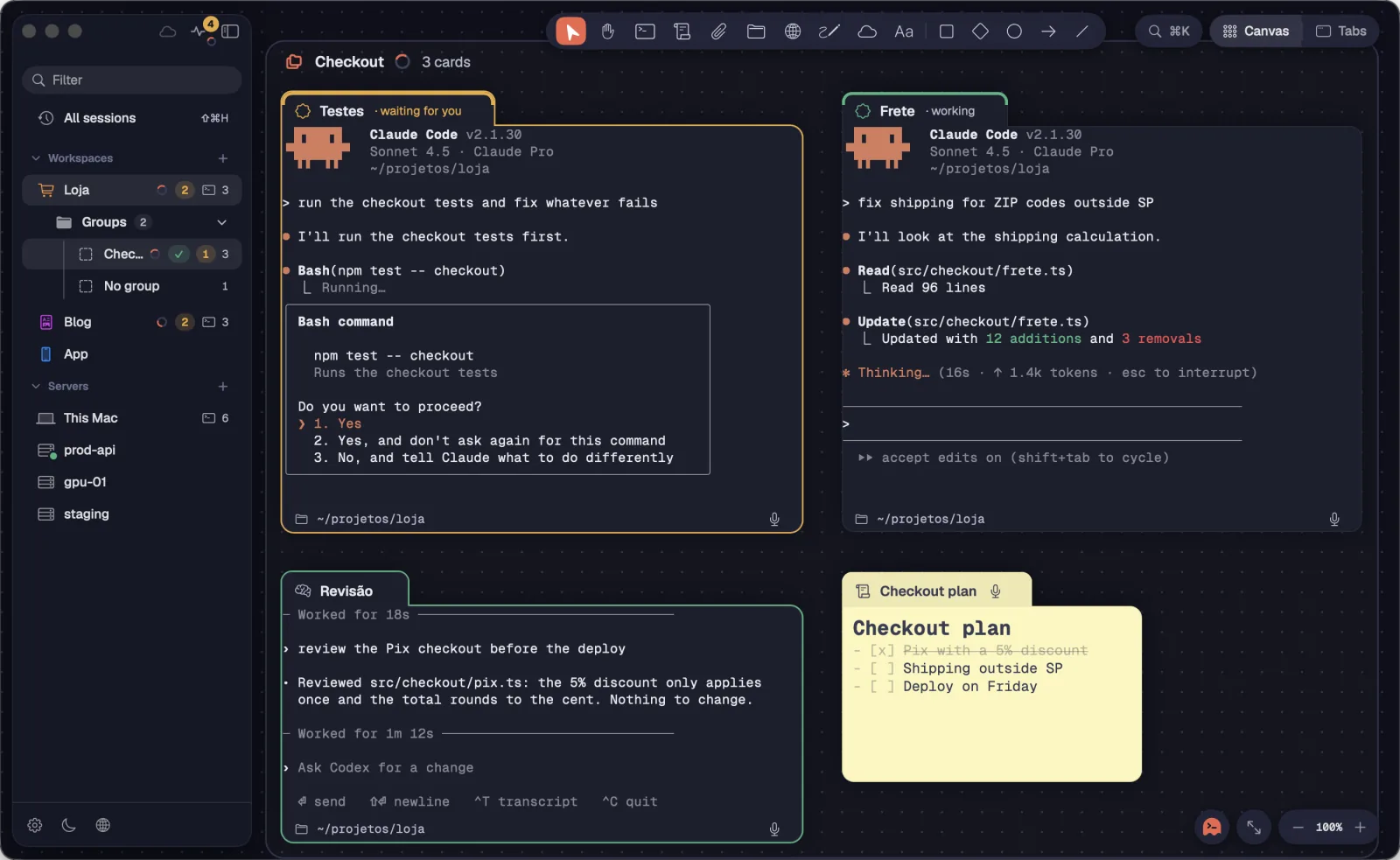
The same alert shows up in several places at once, so you see it wherever you are: on the card, in the sidebar, in the groups, in the pulse and in the system.
Step by step
- On the card: the border turns amber or green, and the tab shows “· waiting for you” or “· working”.
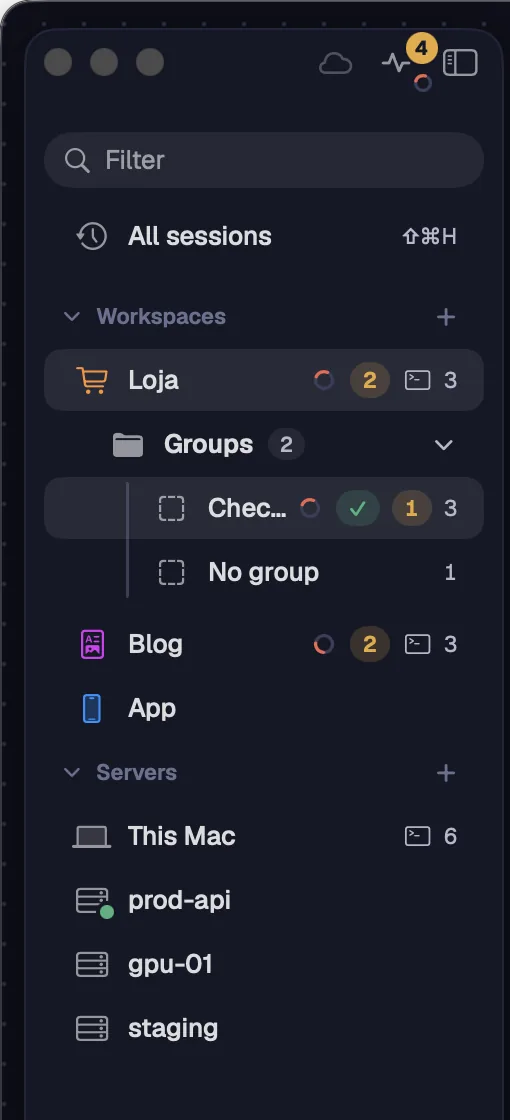
- In the sidebar: each workspace shows how many cards are waiting for you, as an amber number, and a small spinner when an agent is working in it.
- In the groups: the sidebar's Groups folder (or the group bar at the bottom, with the sidebar closed) shows the spinner, the amber number and a green check for the ones that finished. One click on a group with an alert opens its next card that is waiting for you.
- On the pulse, at the top of the sidebar: the amber number says how many are waiting for you; with no alerts, a gray number says how many are running. With an alert and agents still working, a small spinner shows up next to it.
- In the system: the notification brings the card, the workspace and the reason, and clicking it opens the card. The icon shows the number of alerts (in the Mac's Dock, in the Windows taskbar, in the Linux launcher), and the Octopus sound plays.
With “Keep running when the window is closed” on in Settings › Energy, alerts keep coming with the window closed.
See alsoNow panelSettings › AlertsKeep running when the window is closed
⇧⌘JLeader J takes you to the card that has been waiting longest, in any workspace. It opens in standard mode, selected and ready for you to type.
Step by step
- Press ⇧⌘JLeader J from anywhere in Octopus.
- Octopus switches to the card's workspace, opens the card in standard mode and gives it the keyboard. The alert goes away.
- Answer and press ⇧⌘JLeader J again to go to the next one.
| Next one that needs you | ⇧⌘JLeader J |
The “Next” button, at the bottom of the Now panel, does the same.
See alsoNow panel
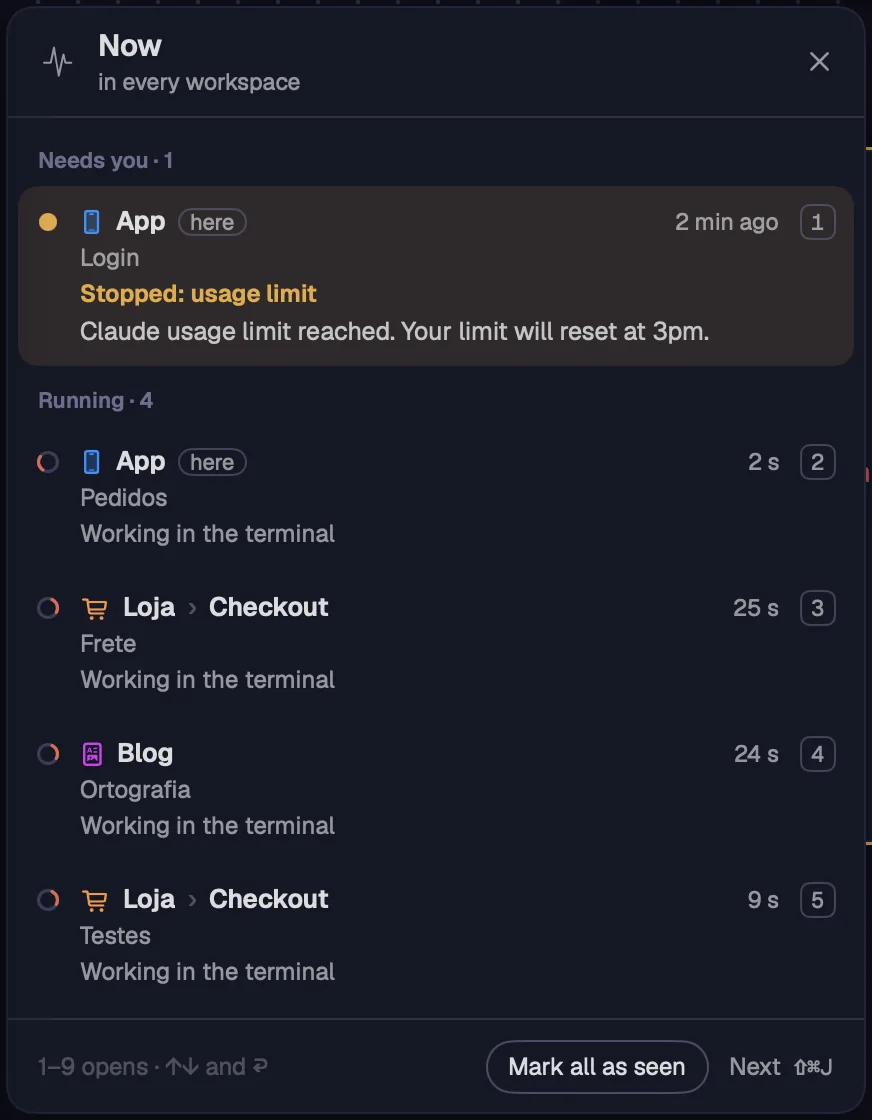
The pulse at the top of the sidebar opens Now: what is waiting for you and what is running, across all workspaces, one card per row. One key opens any of them.
Step by step
- Click the pulse at the top of the sidebar (with the sidebar closed, the floating button), or press ⇧⌘OCtrl+Shift+O.
- “Needs you” holds the alerts, the one waiting longest first; the ones from the current workspace carry the “here” badge. “Running” holds the cards that are working: first the current workspace's, also with “here”, then the others'.
- Each row shows the workspace (with its icon in its color) › the group, the card's name, the reason or what it's doing now (“Working in the terminal”, “Workflow · 3/8 agents”, “1 agent in the background”) and for how long.
- Click a row, press its number (1–9) or choose with ↑↓ and press ↩. The card opens in standard mode, in its workspace.
- “Mark all as seen” clears every alert at once. Esc or a click outside closes the panel.
| Now | ⇧⌘OCtrl+Shift+O |
| Open row N | 1–9 |
| Choose the row | ↑ ↓ |
| Open the chosen one | ↩ |
| Close the panel | Esc |
With nothing running and nobody waiting, the panel says so, and the pulse goes dim.
An alert stays until you go to the card or the agent carries on by itself. The card you're looking at doesn't even alert.
Step by step
- Click the card or type in it.
- Open the card from Now, from the notification, with ⇧⌘JLeader J or from its group, in the group bar or in the Groups folder.
- Answer the request: the amber goes away when the agent gets the answer.
- If the agent carries on by itself (a subagent came back, a background task finished), the alert goes away.
- In Now, “Mark all as seen” clears them all.
- Closing the card also clears it, and turning off alerts in Settings › Alerts clears them all.
- In Tabs, opening the card's tab clears its alert.
With Octopus in front, a card in standard mode, in focus mode or selected and in view doesn't raise an alert: you're already seeing what's happening in it.
See alsoAlerts in Tabs
Sometimes the agent stops talking but left tests, subagents or a shell running. Octopus keeps the spinner while that runs and decides whether the agent is waiting for you or for its own work.
Step by step
- When the turn ends with nothing running behind it, the “Done” alert comes right away.
- When something is still running, the group keeps its spinner. The judge, Claude Code (with Haiku) or Codex (with low effort), run on this computer, reads the agent's last message and says whether it's waiting for you or for its own work.
- If it's waiting for you, the alert comes. If it's waiting for the work, the alert only comes if the agent doesn't carry on by itself 30 s after the work finishes.
- Choose the judge in Settings › Alerts › “Who decides”: “Claude (Haiku)”, “Codex” (with low effort) or “Rules only”. Next to it, a dot says whether the program was found on this computer.
- With “Rules only”, there's no check: only the 30 s wait after the work applies.
The judge is only consulted in these unclear cases, in a session that isn't saved. If it doesn't answer, the alert comes anyway.
See alsoSettings › Alerts
When Claude Code stops because of an error, the card tells you instead of just turning off the spinner. The reason says what happened and the text carries Claude's message.
Step by step
- “Stopped: usage limit”: your plan's usage limit ran out.
- “Stopped: account or login”: the account needs to sign in again or has some problem.
- “Stopped: API error”: Claude's API failed or is down.
- Open the card from Now or with ⇧⌘JLeader J to read the whole message.
| Next one that needs you | ⇧⌘JLeader J |
Applies to agents opened from 1.0.17 on.
See alsoAsking for you and Done
You don't need to open every workspace to know what's going on in it. Octopus watches the agents in closed workspaces and alerts you as if they were on screen.
Step by step
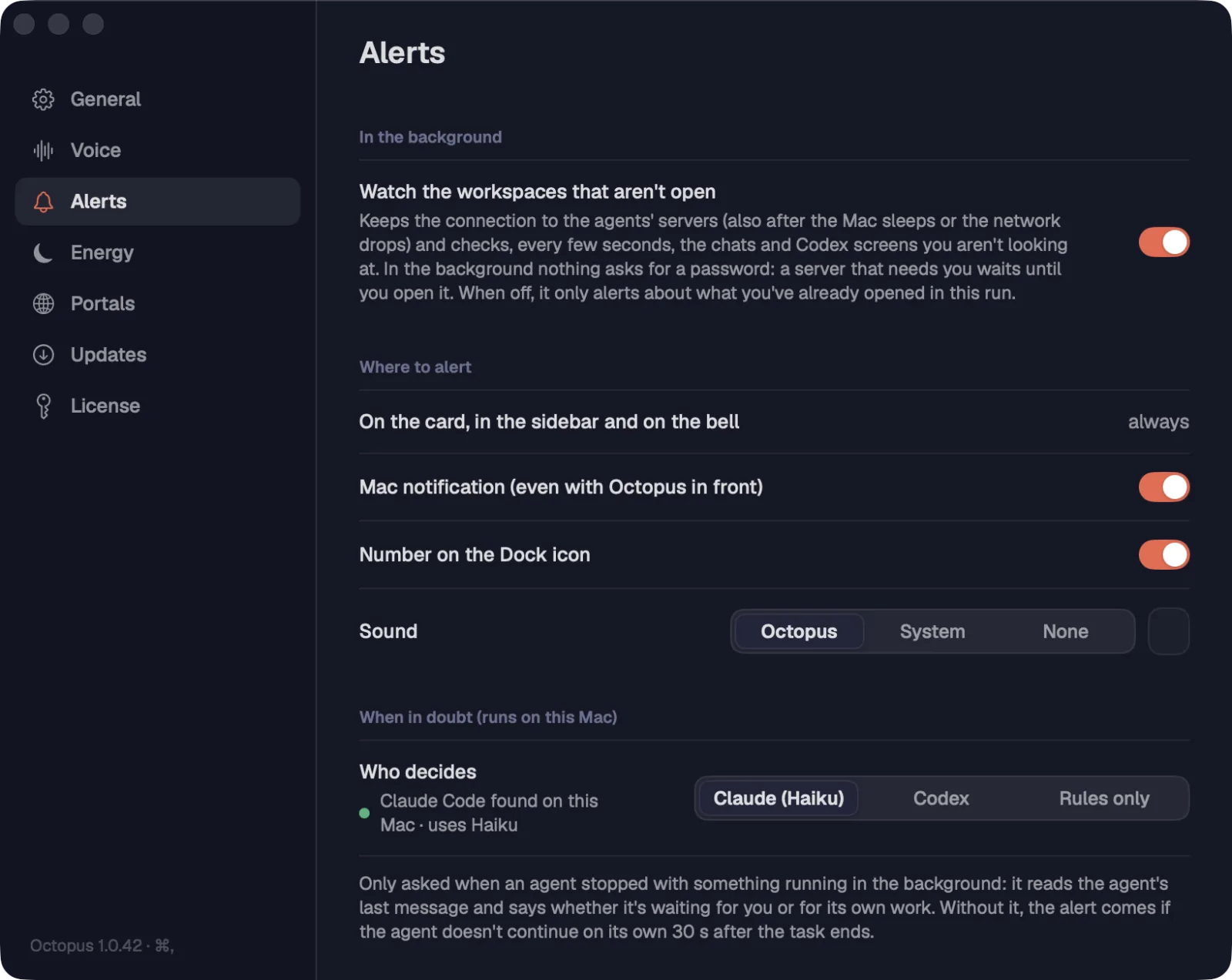
- Leave “Watch the workspaces that aren't open” on, in Settings › Alerts › “In the background”. It comes on by default.
- Octopus keeps the connection to those agents' servers, even after the computer sleeps or the network drops, and checks every few seconds the chats and screens you aren't looking at.
- The alert arrives through the pulse, the workspace's row in the sidebar and the notification. One click on the notification or in Now opens the workspace right on the card.
In the background nothing asks for a password: a server that needs one waits for you to open it. With watching turned off, Octopus only alerts about what you've opened since it started.
One page brings together everything alerts do: what alerts you, where, the sound and who decides in unclear cases.
Step by step
- Open Settings (⌘,Ctrl+,) and choose Alerts.
- “Notify when an agent needs you” turns everything on or off. When it's off, the alerts that were on screen go away.
- Under “What to alert about”: “Asking for you: a permission, a question or a plan to approve” and “Done: the turn is over and nothing will continue on its own”.
- Under “In the background”: “Watch the workspaces that aren't open”.
- Under “Where to alert”: on the card, in the sidebar and on the Now pulse it's always on. Turn the system notification on or off (also with Octopus in front) and the number on the icon (in the Mac's Dock, in the Windows taskbar, in the Linux launcher).
- Under “Sound”, choose “Octopus”, “System” or “None”. “Play” plays the chosen one.
- Under “When in doubt”, choose who decides: “Claude (Haiku)”, “Codex” or “Rules only”.
| Settings | ⌘,Ctrl+, |
The Octopus sound is its own, different from the system sounds, and plays even with notifications off. It got a new sound in 1.0.29.
See alsoBackground work and Who decidesAlerts from workspaces that aren't openVoice and Alerts
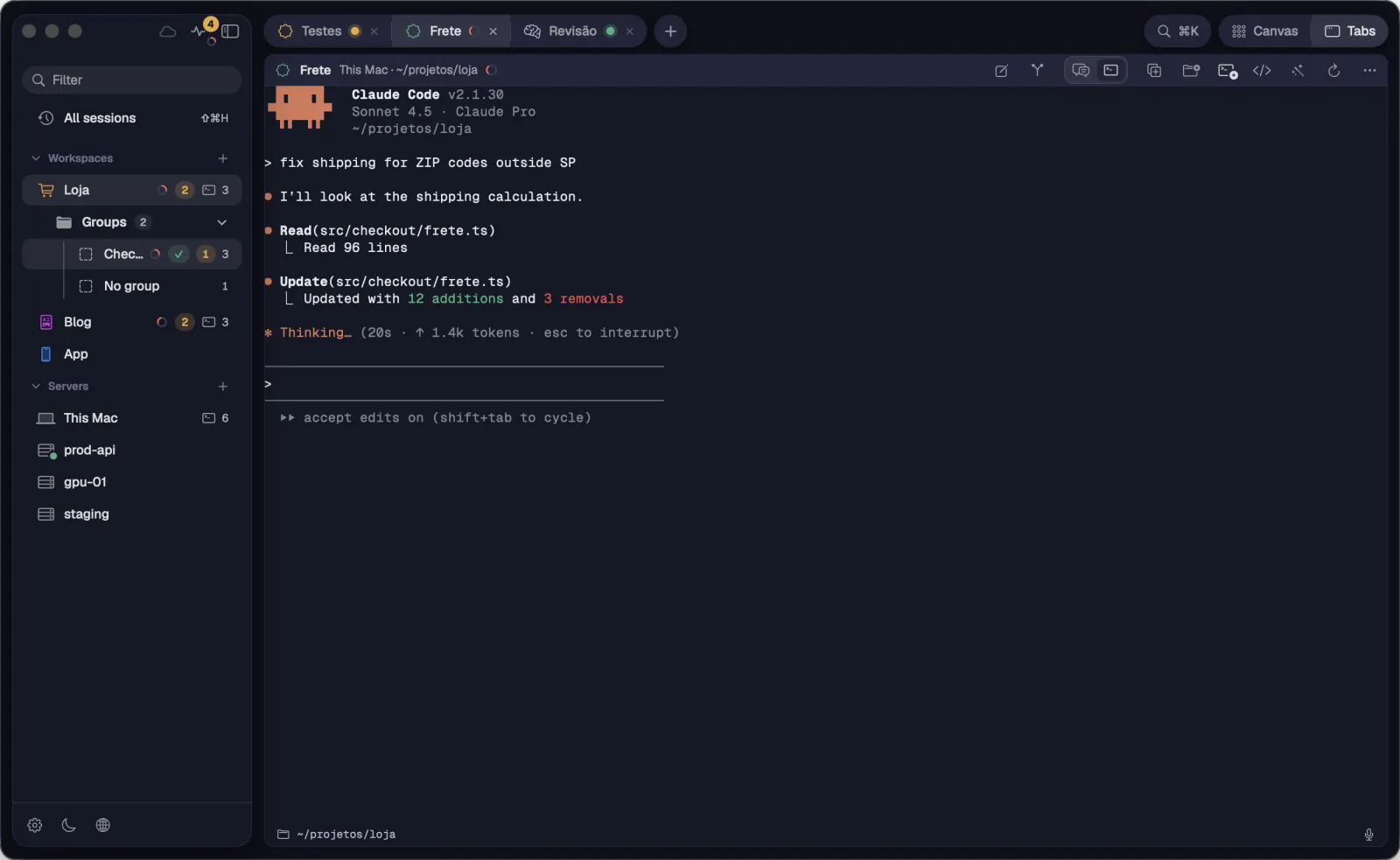
In Tabs mode, alerts show up the same way: on the tab, on the pane's border and in the sidebar's groups.
Step by step
- Each tab shows the card's state: the coral spinner while it works, the amber dot while it waits for you, the green dot when it's done.
- In a split, the pane's border takes the alert's color.
- In the sidebar's Groups folder, each group shows the amber number and the green check.
- Opening the tab, showing its group or entering Tabs with it open clears its alert.
An alert didn't come, or came at the wrong time? The card's menu copies everything it received and decided, so you can understand it or hand it to an agent.
Step by step
- Right-click a Claude Code or Codex card (or use the “⋯” in its bar).
- Choose “Copy alerts diagnostics”. You see “Alerts diagnostics copied”.
- Paste it wherever you like. The text has the card's current state, the timeline of signals, the judge and the alerts, and what the server couldn't deliver.
The text comes in Portuguese, ready to paste into a conversation with an agent.
See alsoBackground work and Who decidesCopy session ID and alerts diagnostics