Docs › Portals and WhatsApp
Portals and WhatsApp
The portal is a browser inside the canvas. It opens any site with your logins, a server's localhost and the mobile version of a page. The agents linked to it read, click and type; on WhatsApp, they read, sum up and reply with your approval.
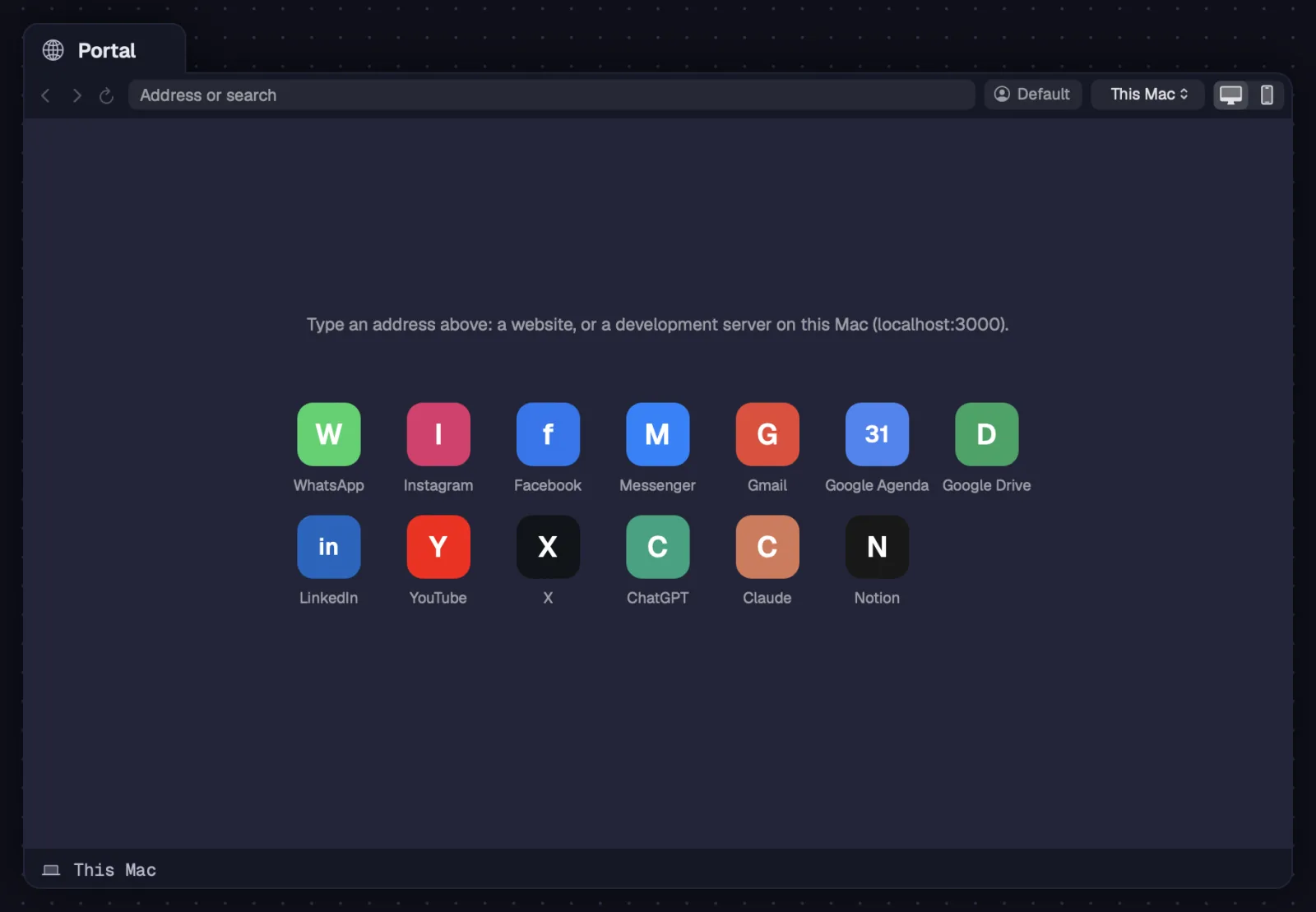
A portal is a card with a web page. It opens an address, a search or a ready-made site from the shortcuts.
Step by step
- Press P with nothing selected and click the canvas (or draw the size). The cursor is already in the address.
- Type an address or a search and press ↩.
- To open a ready-made site, right-click the globe on the toolbar and choose “New portal: …” (WhatsApp, Gmail and the other shortcuts).
- In the Tabs view, the “+” also has “Portal”.
| Portal tool | P |
A new portal is born on the machine of the last terminal you opened. An empty portal linked to a terminal moves to that terminal's machine.
See alsoPortal barSite shortcuts
The bar has back, forward, reload, the address, the localhost machine, the login profile and desktop or mobile mode.

Step by step
- “Back”, “Forward” and “Reload”, which turns into “Stop” while the page loads.
- In the address, ↩ opens what you typed and Esc brings back the current address.
- The machine chip says which computer or server this portal's localhost belongs to.
- The profile chip says where this portal's logins live.
- The screen button switches between desktop and mobile.
- In the card's right-click menu: “Reload”, “View as mobile” (or “View as desktop”) and “Add to shortcuts”.
On Windows and Linux, right-clicking inside the page gives you “Open link”, “Copy link”, “Copy image”, “Back”, “Forward” and “Reload”; in text fields, Cut, Copy, Paste and Select all.
See alsoA server's localhostLogin profilesDesktop and mobile
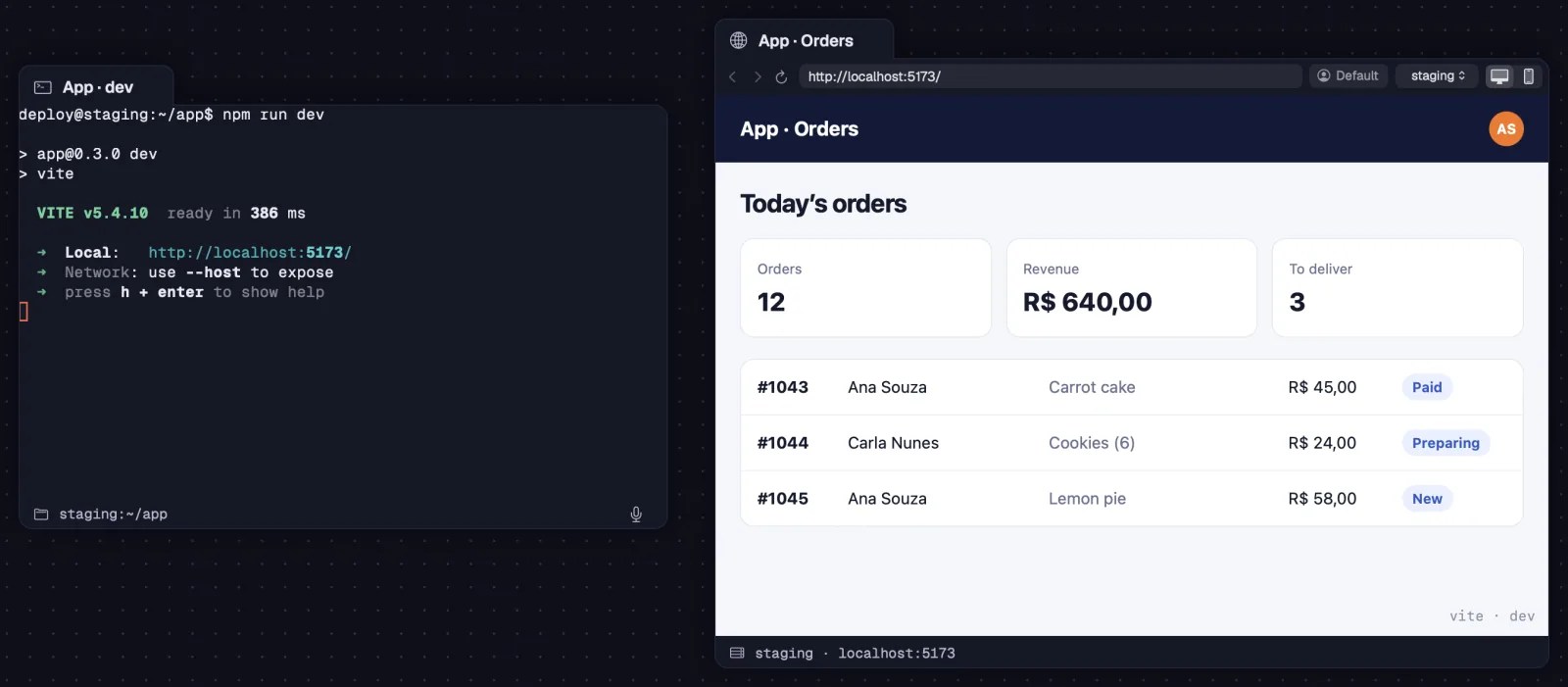
In a portal on a server, localhost is the server's. Octopus opens a tunnel through the SSH connection, and you see the app running there as if it ran on your computer.
Step by step
- Click the machine chip on the bar and pick the server (or your computer).
- Type localhost:3000, or your development server's port. The field reminds you: “Address or search — localhost is the one on …”.
- If nothing answers, the portal says nothing is answering on localhost:3000 on that machine, asks whether the page's server is running and offers “Try again”.
Self-signed certificates, common on development servers, are accepted on localhost, and only there.
See alsoAgents that use the portal
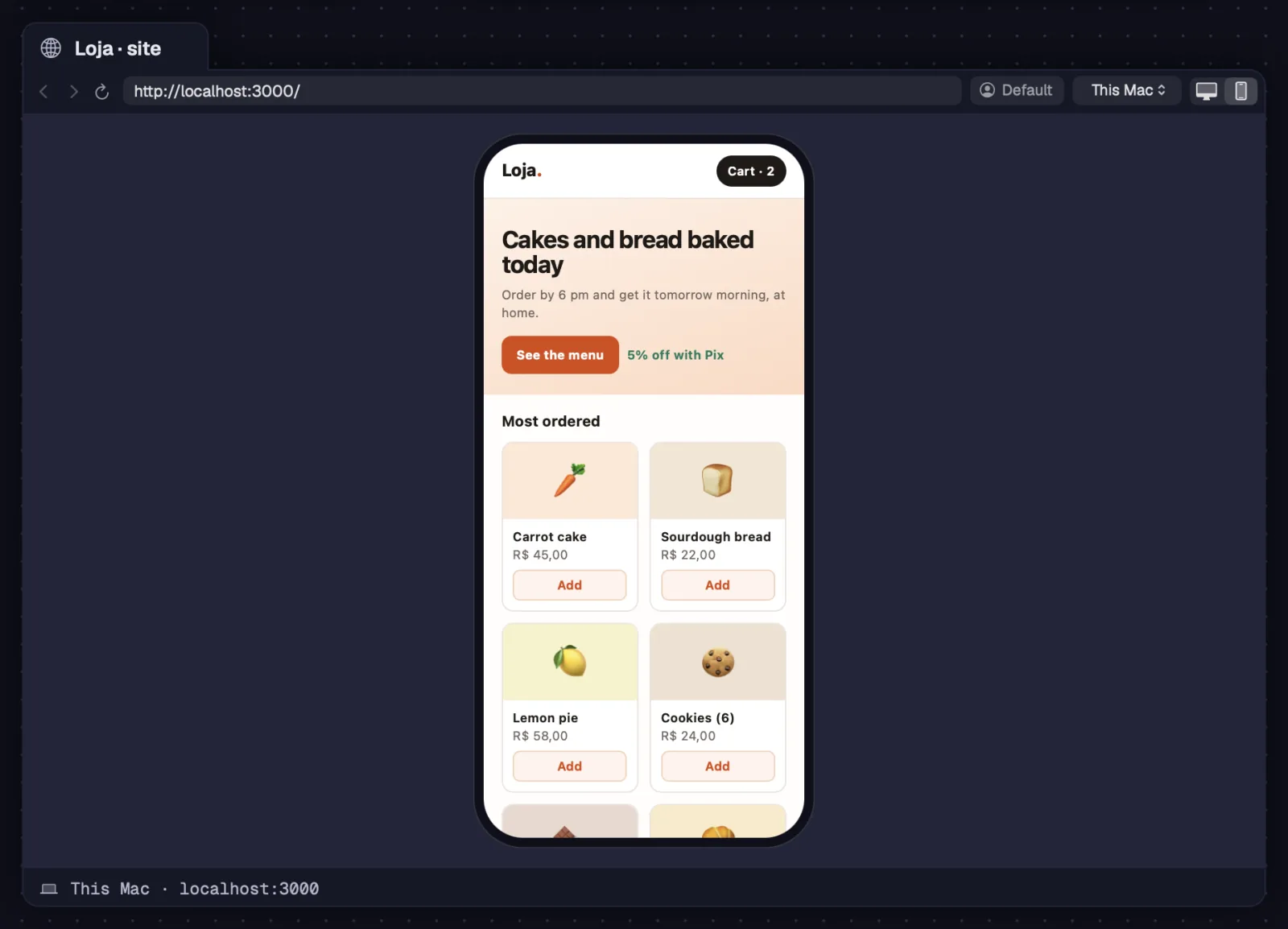
See the page as on a computer or as on a 390×844 phone, to test a responsive site next to the code.
Step by step
- On the bar's screen button, click the computer (Desktop: the page fills the portal) or the phone (a 390×844 screen, like an iPhone).
- Or use “View as mobile” and “View as desktop” in the card's right-click menu.
- An agent can pin another size with octo portal viewport; the screen button's tooltip says “Fixed … screen”.
In standard mode, a portal in desktop mode takes up the whole view.
See alsoPortal bar
An empty portal shows tiles that open sites with one click, and you can add your own.
Step by step
- In an empty portal, click a tile: WhatsApp, Instagram, Facebook, Messenger, Gmail, Google Agenda, Google Drive, LinkedIn, YouTube, X, ChatGPT, Claude or Notion.
- To keep the open site, right-click the card and choose “Add to shortcuts”.
- To remove one of your shortcuts, right-click it and choose “Remove from shortcuts”.
- Right-clicking the globe on the toolbar lists the shortcuts as “New portal: …”.
A portal opened from a shortcut keeps the site's name, without the unread count the page puts in its title.
See alsoOpen a portal
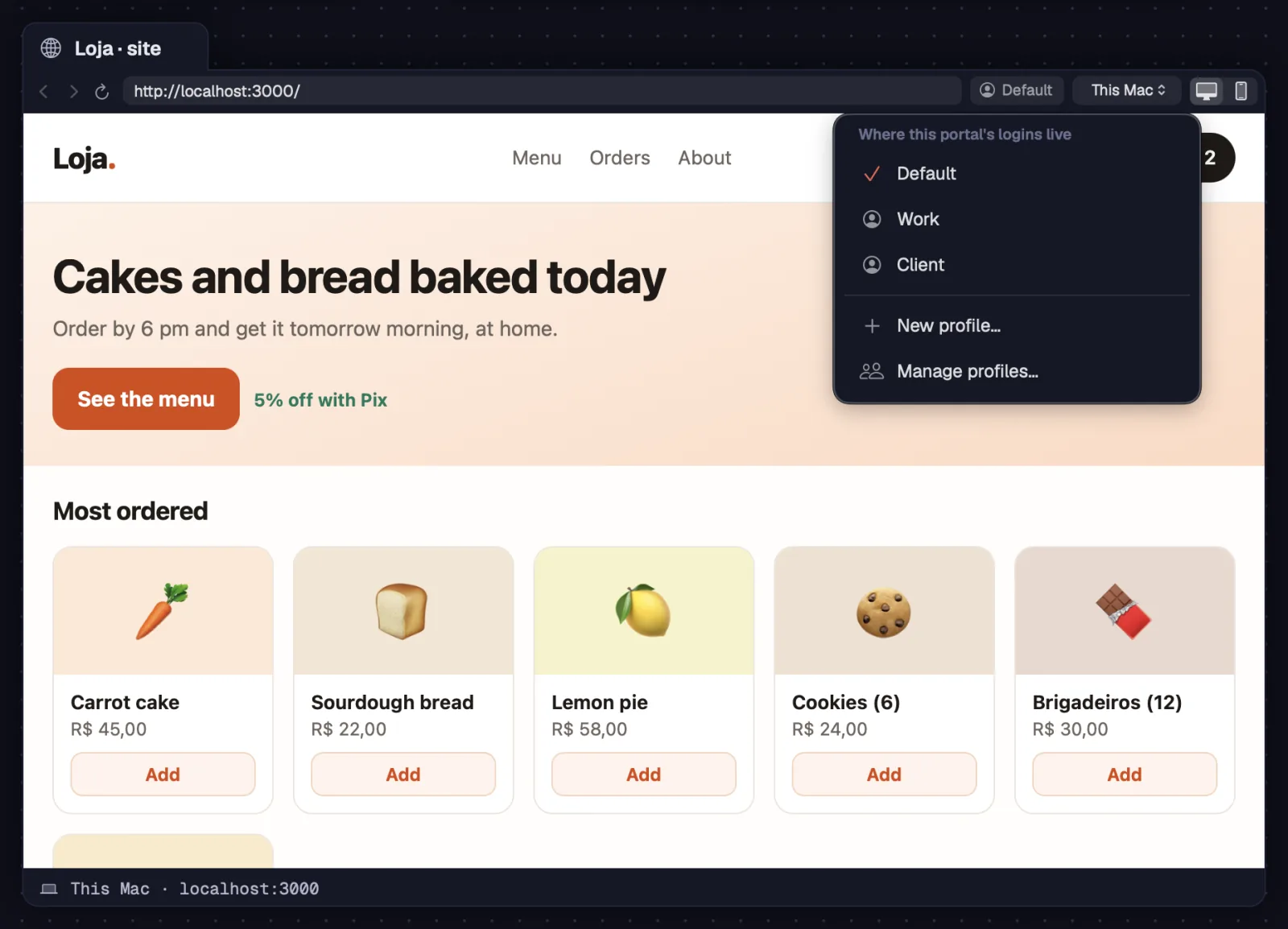
Portals share logins: sign in once and you're signed in on all of them. A profile keeps another account apart, like your work one and your personal one.
Step by step
- Click the profile chip on the bar. The “Where this portal's logins live” panel lists the profiles, with the current one checked.
- Pick another profile: the page opens again with that profile's logins.
- “New profile…” creates a profile (Work, Personal, Client…) and puts this portal in it.
- “Manage profiles…” (also in Settings › Portals › Profiles) shows how many portals use each profile, with “Rename…” and “Delete…”. “Default” can't be renamed or deleted.
- Deleting a profile deletes its logins from this computer, and its portals move to Default.
Two WhatsApp portals on the same profile fight over the same session, and Octopus tells you to put one of them on another profile. A portal from before profiles shows “This portal only” and has “Move to Default…”.
See alsoTurn on WhatsApp for agents
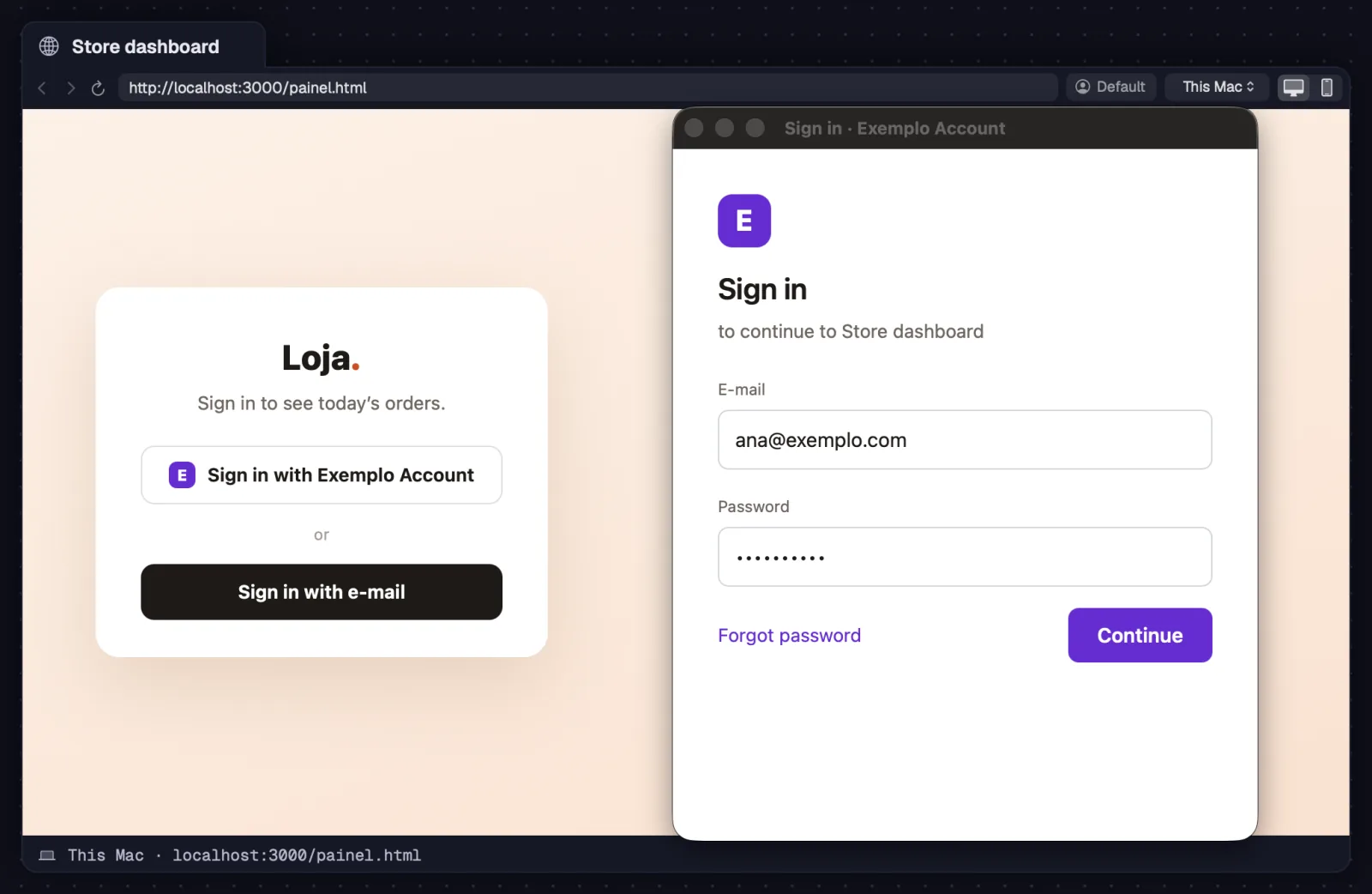
Signing in with Google or Facebook in a pop-up window works: it shows up as a panel over the portal and takes you back to the page when it's done.
Step by step
- Click “Sign in with Google” (or another login that opens a window) on the site.
- The window opens as a panel over the portal. Sign in there.
- When the site closes the window, the panel goes away and the page stays signed in.
Links that would open another tab open in the same portal. On Windows and Linux, Google sign-in in the portal works since 1.0.32.
See alsoLogin profiles
What the page doesn't display, like a .zip or a PDF sent as an attachment, is downloaded to the Downloads folder.
Step by step
- Click the download link on the page.
- When it's done, the notice says the file was downloaded to Downloads, with “Show”, which opens the folder on it.
- If it fails, the notice says why.
An agent sees the portal's downloads with octo portal downloads.
See alsoAgents that use the portal
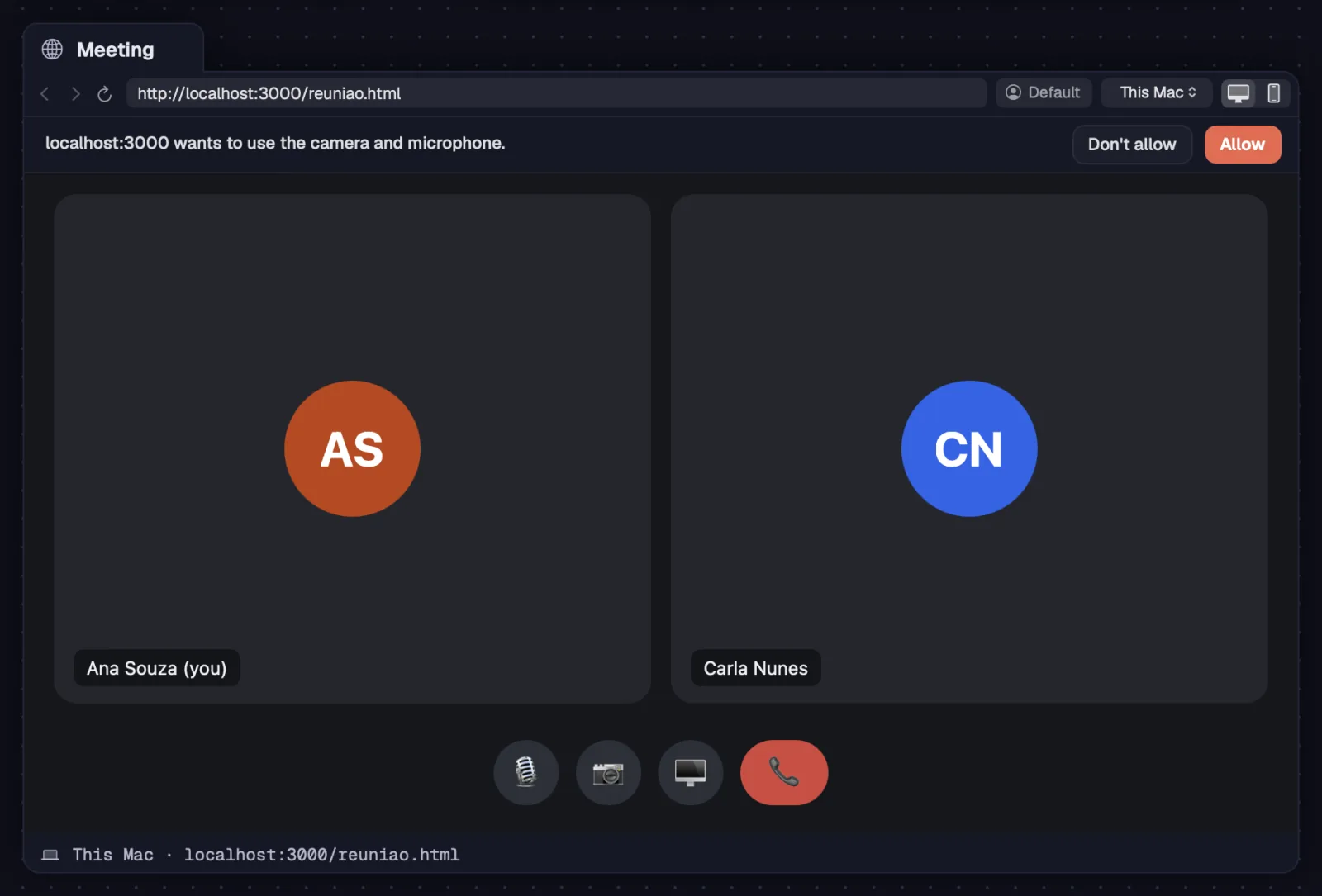
When a site asks for the camera, the microphone or to show notifications, the portal asks you in a strip over the page. The answer applies to that site, in that profile.
Step by step
- Read the strip: the site wants to use the camera, the microphone, both, or show notifications.
- Click “Allow” or “Don't allow”. The portal remembers the choice for that site in that profile.
- Notifications from an allowed site arrive as Octopus notifications.
- The page's own alerts and confirmations (“… says”) also show up for you to answer, as in a browser.
Agents never answer for the camera or the microphone. With the portal out of view, a page confirmation is canceled.
See alsoLogin profiles
A portal nobody sees goes to sleep, like a hidden browser tab, and uses almost nothing. It wakes up when an agent uses it.
Step by step
- A portal is hidden when its workspace isn't open, the window is minimized or the app is hidden.
- While hidden, it sleeps: the page stays open, but nearly idle.
- When an agent sends it a command, the page runs as if it were in view, and stays that way for 15 s after the last command.
- A WhatsApp an agent is following (octo whatsapp subscribe) stays awake to receive messages.
This works on all three systems.
See alsoAgents that use the portal
Link a portal to a terminal and the agent uses the site signed in as you: it reads, clicks, types, waits and takes screenshots of the page, even with the window hidden.
Step by step
- Link the portal to the agent's terminal with a cable (⌘LCtrl+Shift+L). A portal only links to terminals.
- Ask in plain words: “open the dashboard and check today's orders”, “read the video's comments”.
- The agent uses octo portal: open, text and snapshot to read; click, type, fill, select, press and scroll to act; wait and watch to wait for something to show up; screenshot for a picture of the page.
- It also sees the windows the page opened (tabs), the downloads, the cookies and the console.
- The localhost the agent opens is its own machine's.
| Start connection | ⌘LCtrl+Shift+L |
The agent works even with the workspace closed or the window minimized.
See alsoHidden portals sleepRead, sum up and search WhatsApp
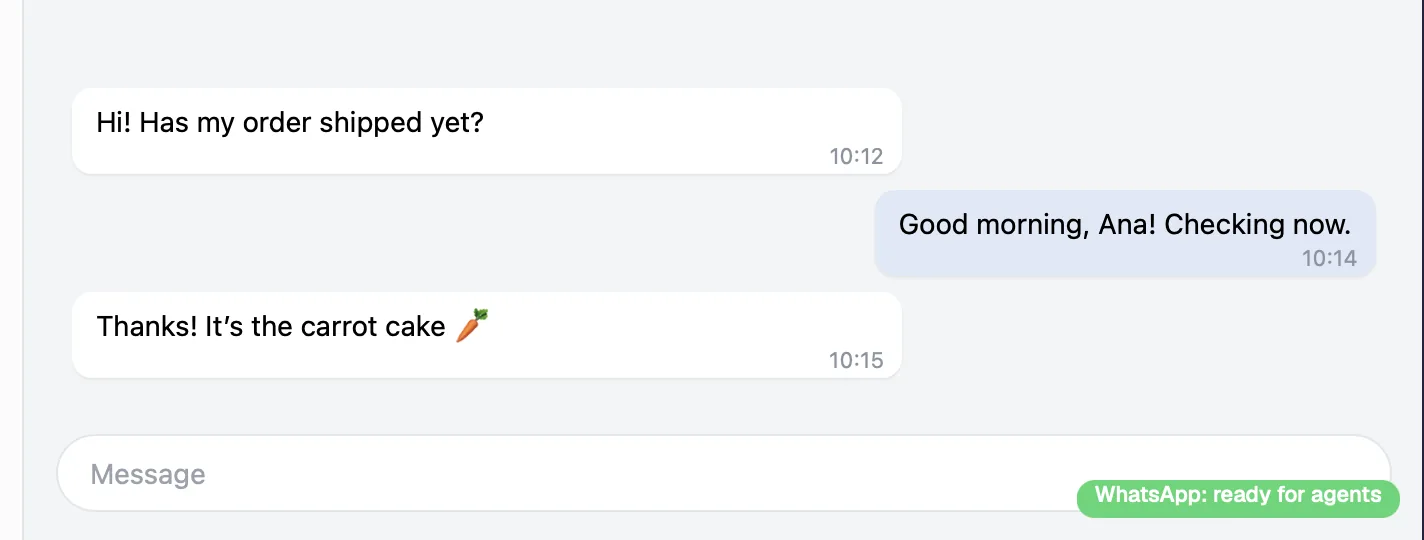
With WhatsApp Web in a portal, you let linked agents read the chats and, with your approval, reply.
Step by step
- Open a portal from the WhatsApp shortcut and sign in with the QR code, on your phone. Only you scan the QR code.
- Right-click the card and check “Let linked agents use this WhatsApp”.
- The first time, Octopus explains the risk: WhatsApp doesn't officially allow automation, and overusing it can get the number banned. Click “Allow”.
- Link the portal to the agent's terminal with a cable.
- In the page's corner, a badge shows the status: “WhatsApp: ready for agents”, “WhatsApp: sign in (QR)”, “WhatsApp: syncing”, “WhatsApp: loading”, “WhatsApp: open somewhere else” or “WhatsApp: account banned”.
Uncheck the same item to take away the agents' access.
See alsoRead, sum up and search WhatsAppReply with your approval
Ask the agent to read a chat, sum up the day or a group, find an old message or let you know when something new arrives.
Step by step
- Ask in plain words: “sum up today's Loja group”, “what did Carla Nunes ask yesterday?”, “let me know when Ana Souza replies”.
- The agent uses octo whatsapp: chats lists the chats (unread ones too), read reads a chat, messages gets the messages from a period, search looks for a text, group shows a group's members and media downloads a photo or a file.
- To follow along, it uses watch or subscribe: it only gets a notice of how many messages arrived, at most every 30 s, and reads them when it wants.
- mark-read marks a chat as read.
Octopus tells the agent that what comes from WhatsApp is data, not instructions.
See alsoReply with your approval
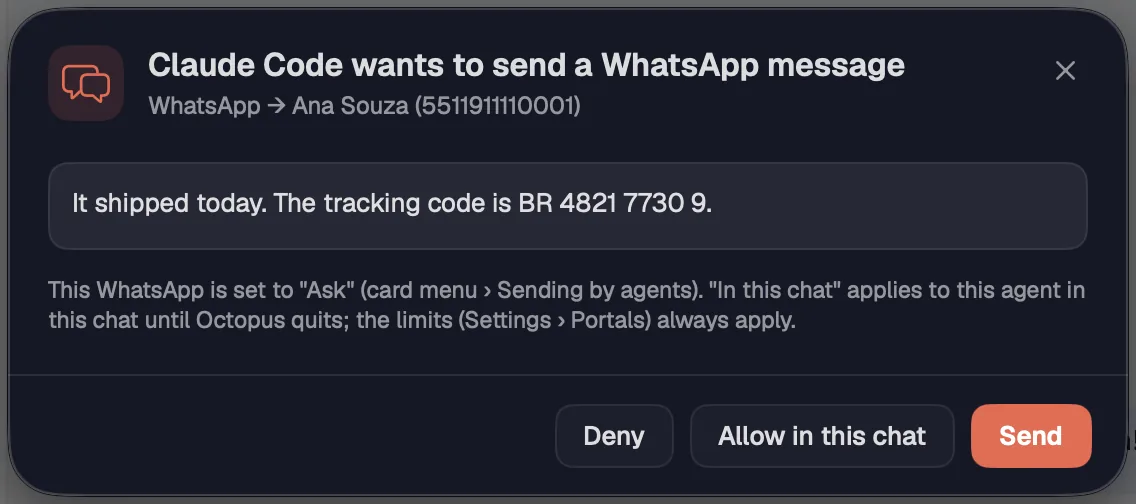
The agent writes the reply and Octopus asks before sending it. Nothing goes out until you see the text and who it's going to.
Step by step
- Ask: “tell Ana Souza her order shipped today”. The agent uses octo whatsapp send, or send-file to send a file.
- The agent's card turns amber with “Asked to send a WhatsApp message”, and the sheet shows the chat and the text.
- Click “Send” (just this one), “Allow in this chat” (this agent, this chat, until Octopus quits) or “Deny”. With no answer in 2 minutes, nothing is sent.
- The agent only sends to chats that already exist.
- In the portal's right-click menu, “Sending by agents” picks the mode: “Ask” (the default: each message waits for you), “Blocked” (agents send nothing) or “Free” (sends without asking, always within the limits).
If an agent tries to click and type directly on the WhatsApp page, Octopus asks first as well. To read and send with your approval, its way in is octo whatsapp.
The limits protect your number: a minimum interval between messages and a maximum per hour and per day, adding up all agents. They're in Settings › Portals.
Step by step
- Open Settings (⌘,Ctrl+,) › Portals › “Agents' WhatsApp”.
- “Interval between messages”: an agent sends at most one message in that time, on each WhatsApp account. The default is 5 s.
- “Messages per hour”: adding up all agents, on each account. The default is 60.
- “Messages per day”: in the last 24 hours. The default is 300.
- Loosening them beyond the default asks for confirmation, because it raises the risk of the number being banned.
| Settings | ⌘,Ctrl+, |
The limits always apply, in any sending mode. With octo whatsapp status, the agent sees the limits and how much has gone out.
See alsoReply with your approvalPortals