Docs › Workspaces and sidebar
Workspaces and sidebar
A workspace is a whole canvas, with its cards, groups, history and saved groups. You can have several, switch with a shortcut and archive the ones you don't use. The sidebar brings together the workspaces, the servers and the buttons for everything else.
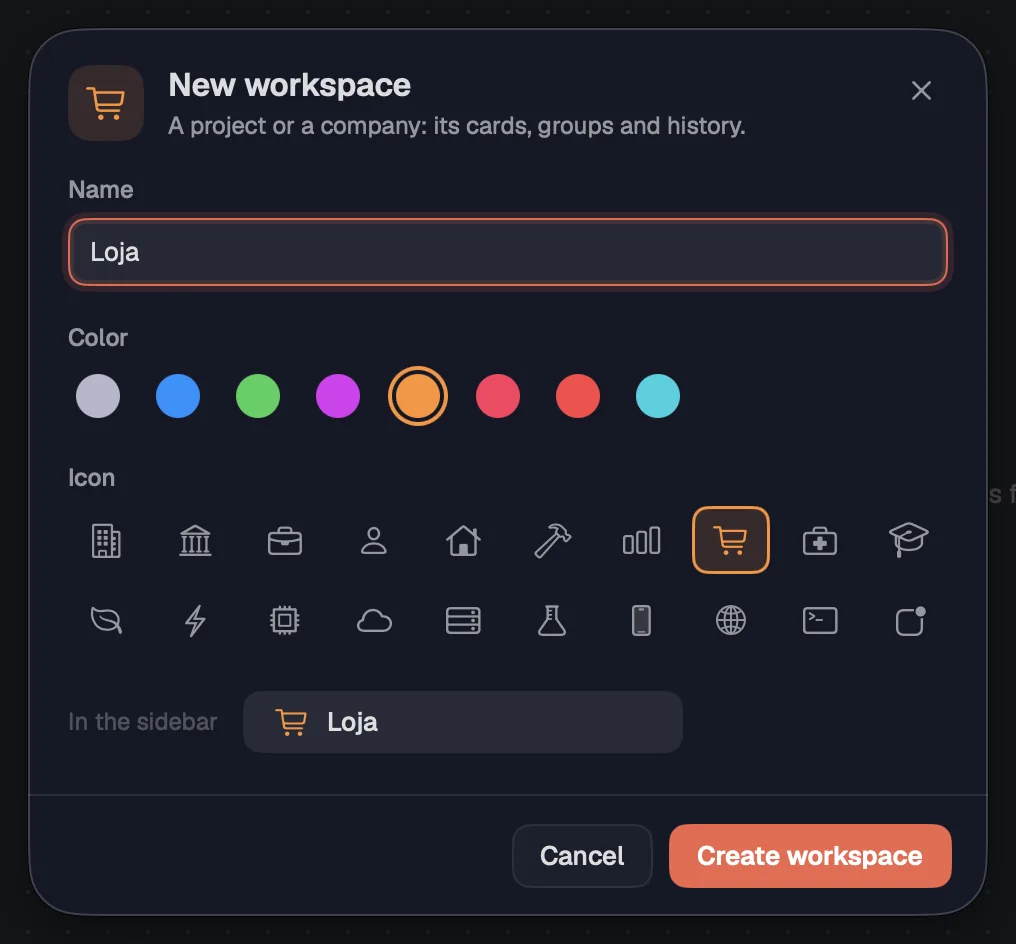
A workspace is a whole canvas: its cards, groups, history and saved groups. Create one for each project or company. The first one is called “Personal”.
Step by step
- Press ⇧⌘NCtrl+Shift+N, or click the “+” next to “Workspaces” in the sidebar.
- Give it a name, for example “Loja”. Pick one of the 8 colors and one of the 20 icons; the “In the sidebar” preview shows how it looks.
- Click “Create workspace”. It shows up in the sidebar and opens.
- To change the name, color or icon later, right-click the workspace and choose “Edit…”.
| New workspace | ⇧⌘NCtrl+Shift+N |
See alsoSwitching workspaces
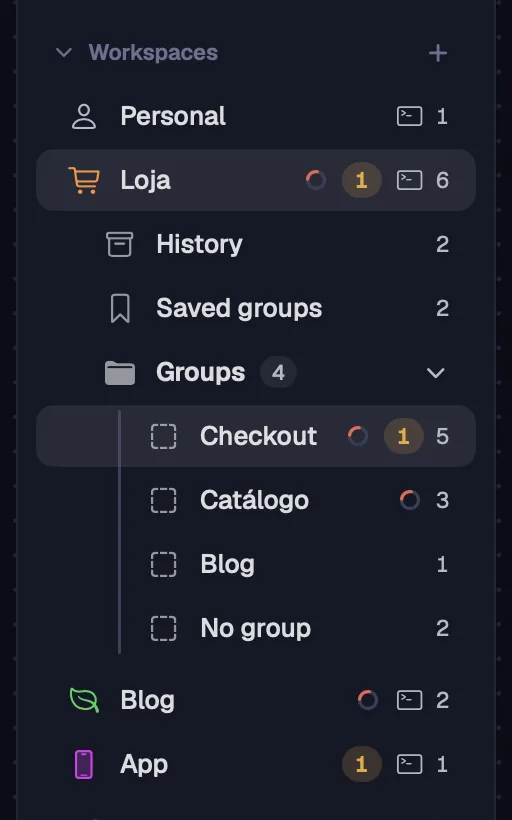
Each workspace keeps the view where you left off, and its agents keep working while you're in another one. Switch from the sidebar or from the keyboard.
Step by step
- Click the workspace in the sidebar.
- ⌘↓Ctrl+Shift+PgDn goes to the next one and ⌘↑Ctrl+Shift+PgUp to the previous one, in sidebar order. The brackets work too: ⌘] and ⌘[ on the Mac, Ctrl+Shift+] and Ctrl+Shift+[ on Windows and Linux.
- To go straight to workspace N, tap ⌘Ctrl twice and press the number from 1 to 9. On Windows and Linux, Leader 1 to Leader 9 work too.
- With the sidebar closed, click the workspace name at the top: the “Workspaces” list switches workspaces and has “New workspace…”.
- Each row in the list shows how many terminals the workspace has, a spinner when an agent is working in it and an amber number for the cards that need you.
- If the switch takes a while, a pill with “Opening” and the workspace name shows up in the middle of the canvas.
| Next workspace | ⌘↓ or ⌘]Ctrl+Shift+PgDn or Ctrl+Shift+] |
| Previous workspace | ⌘↑ or ⌘[Ctrl+Shift+PgUp or Ctrl+Shift+[ |
| Workspace 1 to 9 | ⌘ twice + 1–9Ctrl twice + 1–9, or Leader 1–9 |
See alsoWith the sidebar closedNavigate
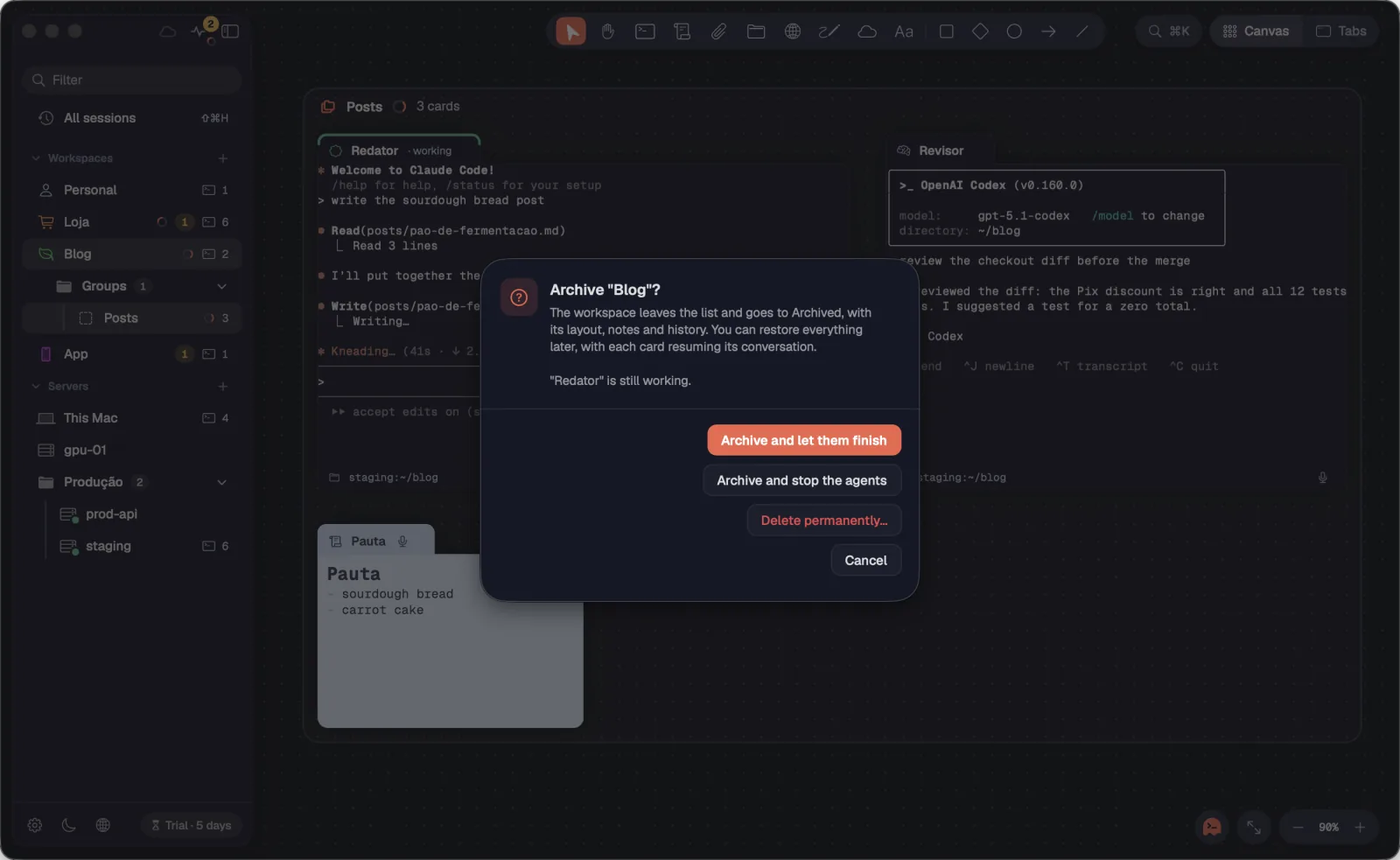
Instead of deleting, you archive: the workspace leaves the list and goes to “Archived”, with its layout, notes and history. You can restore everything later, with each card resuming its conversation.
Step by step
- Right-click the workspace and choose “Archive workspace…”.
- With no agents working, click “Archive”. With agents working, choose “Archive and let them finish” or “Archive and stop the agents”.
- “Delete permanently…” asks again. The layout, notes and history go to the Trash and its sessions end; the agents' conversations stay saved on the machines. If it has saved groups, you choose which workspace they go to.
- The last workspace in the list can't be archived or deleted.
See alsoArchivedSaved groups
The “Archived” section, at the bottom of the sidebar, keeps the archived workspaces, with how long ago each was archived. It starts collapsed.
Step by step
- Click the “Archived” title to open the section.
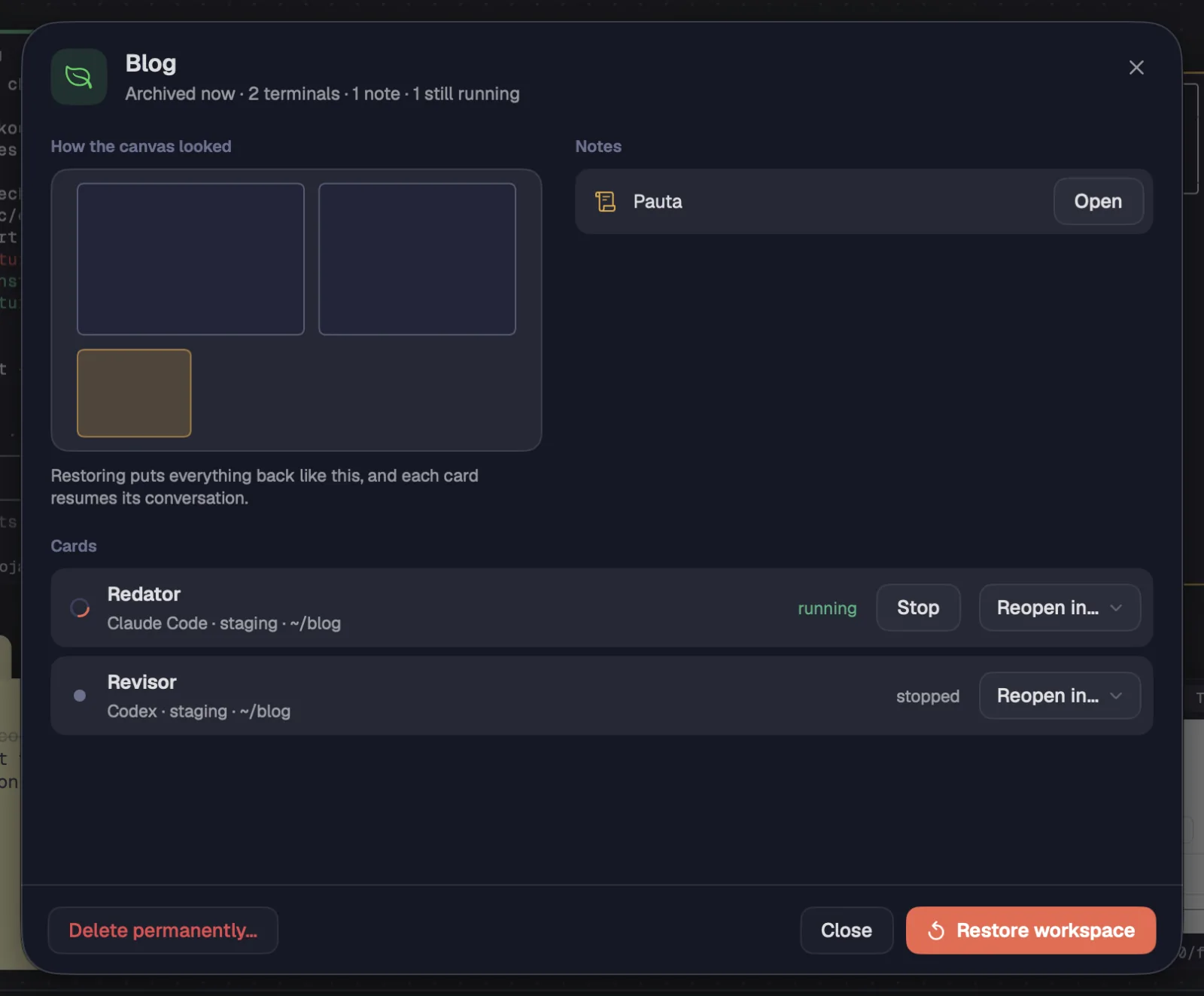
- Click an archived workspace. The sheet shows how the canvas looked, the notes (with “Open”) and the cards, running or stopped, plus the ones that were already closed.
- Click “Restore workspace” to put everything back the way it was.
- To bring back a single card, use “Reopen in…” and choose the workspace. A card that is still running has “Stop”.
- Right-clicking an archived workspace gives you “Restore” and “Delete permanently…”.
See alsoArchiving a workspace
Send a card, several cards or a whole group to another workspace, with their sessions running. The history, the saved group, the alerts, the notes and the files go along.
Step by step
- Right-click the card and open “Move to workspace ▸”. With several selected, the item becomes “Move N cards to workspace ▸”, and the selection bar has the same button.
- For a group, use “Move group to ▸” in the menu of the group's name or of the group bar, or the “Move the group to another workspace” button in the group's bar.
- Choose the workspace, or “New workspace…” to create one on the spot (“Create and move”). You stay where you are.
- On the Mac, if it's a Maestro without its team, Octopus asks: “Take the team” or “Only the Maestro”.
- The notice at the bottom says where it went, with “Go to …” and “Undo” (⌘ZCtrl+Z). Cables to cards that stayed behind are cut, and the notice says how many.
On a Mac without tmux, a terminal on this Mac can't change workspaces without closing.
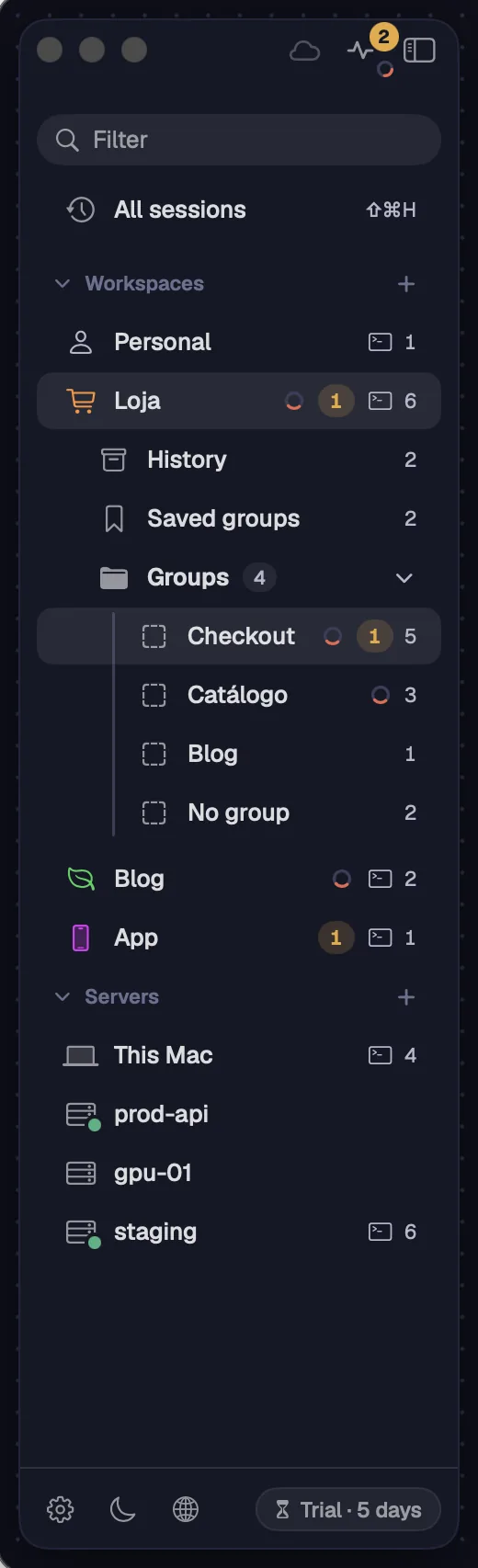
The sidebar gathers what isn't on the canvas: workspaces, servers and the panel buttons. It floats over the window, on the left.
Step by step
- Press ⌘SCtrl+Shift+S or click the sidebar button to show or hide it.
- At the top are the cloud (“Cloud accounts”, ⇧⌘ULeader U), the “Now” pulse (⇧⌘OCtrl+Shift+O), with the counts of what needs you and a spinner when something is running, and the button that hides the sidebar.
- The “Filter” field filters workspaces and servers by name (a server also by host).
- “All sessions” (⇧⌘HCtrl+Shift+H) lists the conversations from every server and folder, including the ones started outside Octopus.
- Then come the “Workspaces”, “Servers” and “Archived” sections. Click a section's title to collapse it.
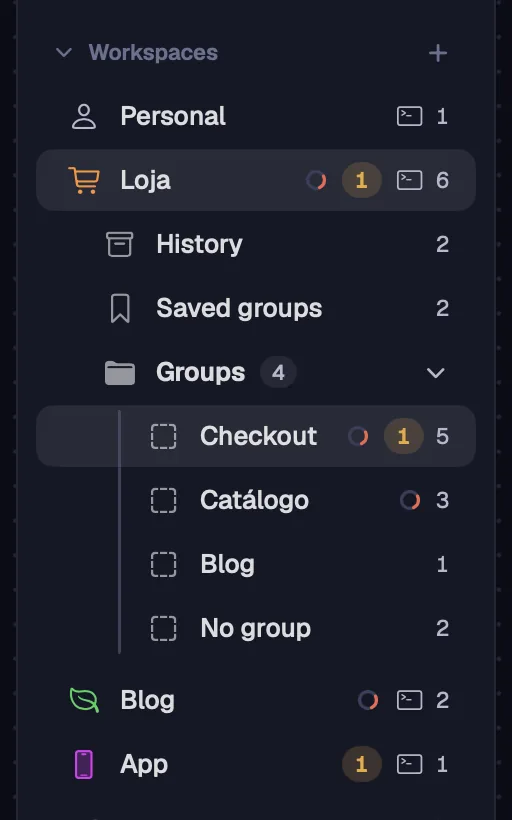
- Below the open workspace you see “History” (⌘YCtrl+Shift+Y), when there are closed cards, “Saved groups” (⇧⌘YLeader Y), when there are any, and the “Groups” folder.
- The footer holds Settings, theme, language and the trial pill.
| Show or hide the sidebar | ⌘SCtrl+Shift+S |
| All sessions | ⇧⌘HCtrl+Shift+H |
| Now | ⇧⌘OCtrl+Shift+O |
| Cloud accounts | ⇧⌘ULeader U |
| Workspace history | ⌘YCtrl+Shift+Y |
| Workspace saved groups | ⇧⌘YLeader Y |
See alsoServers in the sidebarFooter: Settings, theme and languageNow panelAll sessionsThe Cloud accounts panel
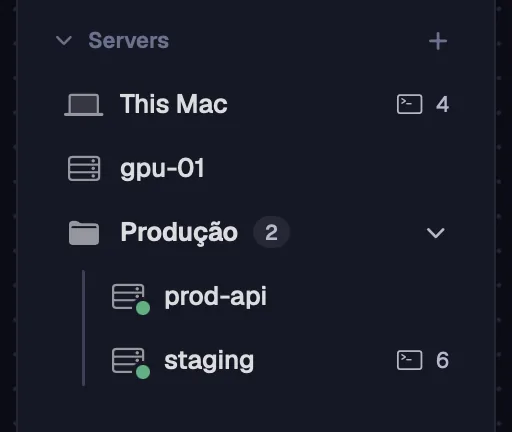
The “Servers” section lists this computer and your SSH servers, on their own or in group folders. One click opens a terminal there.
Step by step
- Click “This Mac” (on Windows and Linux, “This computer”) to open “New terminal” here. Without tmux, the row shows “no tmux”.
- Click a server to open “New terminal” on it, with the sessions already running there.
- Each row shows a status dot and the number of sessions.
- The section's “+” offers “New server…”, “New server group…” and “Import from ~/.ssh/config”.
- Drag a server onto a group's folder to put it there; drag it out of the group to take it out.
- Right-click a server: “New terminal…”, “Edit…”, “Duplicate”, “Move to ▸” and “Delete server…”. On a group: “New server in this group…”, “Rename group…” and “Delete group”.
Passwords and keys live only in the system vault. Deleting a server also deletes what was stored there.
See alsoAdding a serverServer groupsImporting from ~/.ssh/configClicking a server: the sessions already running
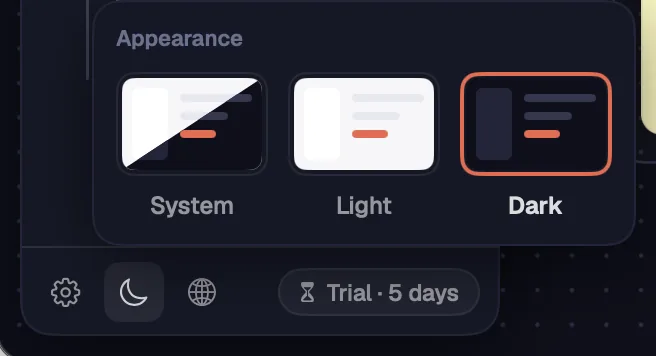
At the bottom of the sidebar you find the Settings gear, the theme, the language and the trial or license pill.
Step by step
- The gear opens Settings (⌘,Ctrl+,).
- The sun or moon opens the theme: “System”, “Light” or “Dark”.
- The globe changes the language: “Same as the Mac” (on Windows, “Same as Windows”; on Linux, “Same as the system”), “Português (Brasil)”, “English” or “Español”. The app asks and, on “Reopen now”, opens again in the new language; terminals and chats keep running in their sessions.
- The trial or license pill shows up on the right when days are counting down.
| Settings | ⌘,Ctrl+, |
Product terms stay in English (Claude Code, Codex, Maestro, Effort, Ultracode, model names), and nothing inside the terminals is translated.
During the trial, the footer shows “Trial · N days”. In the last 30 days of a yearly license, it shows “Ends · N days”.

Step by step
- The trial pill turns coral in the last 2 days.
- The license pill is amber and turns coral in the last 7 days.
- Hover over it to see the end date. Click it to open Settings › License and buy or renew.
- With the sidebar closed, the pill sits in the bottom left corner.
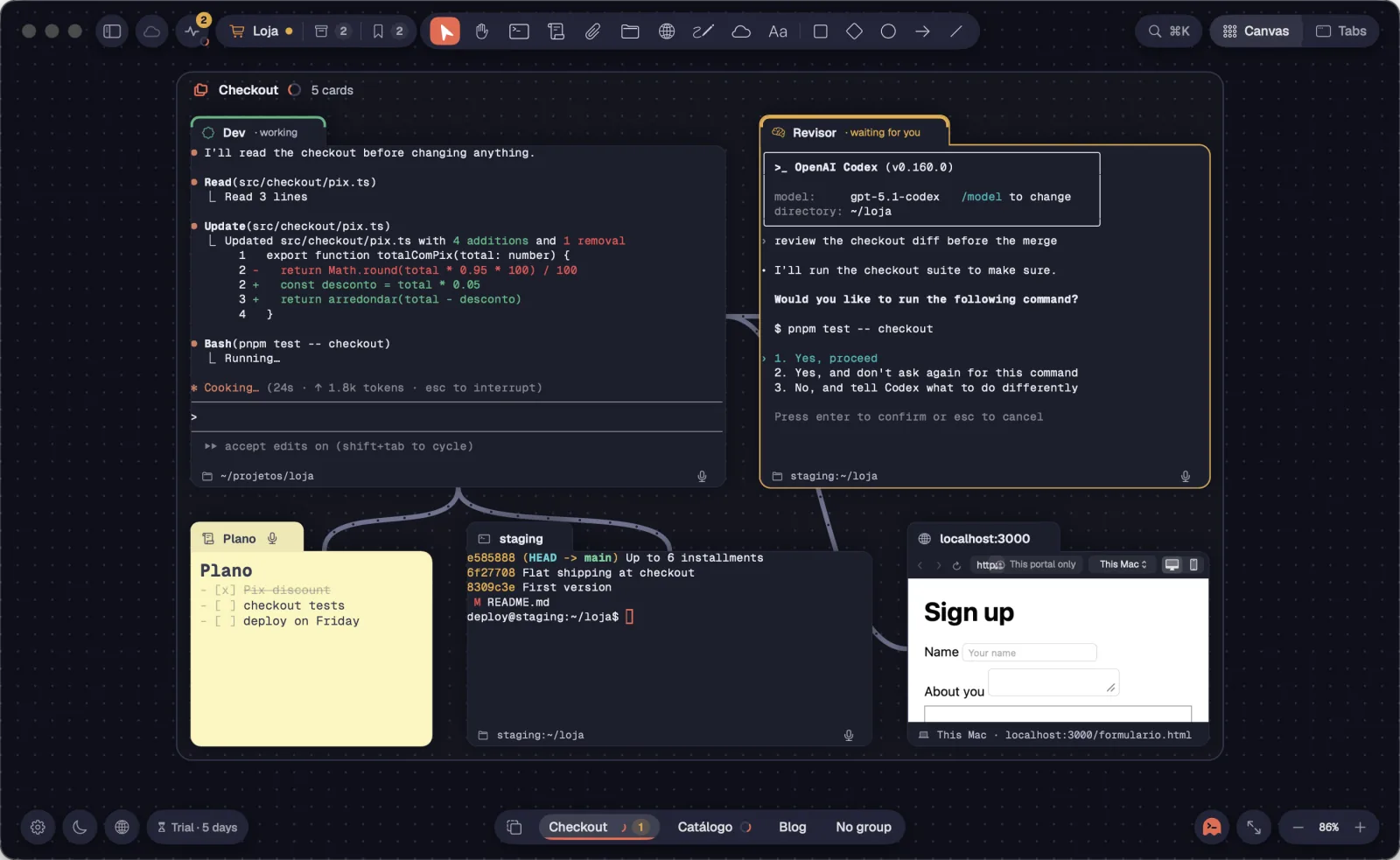
With the sidebar closed, the essentials sit in glass buttons over the canvas, and you can switch workspaces without opening the sidebar.
Step by step
- At the top: the button that reopens the sidebar, the cloud, the “Now” pulse and a capsule with the workspace, the history (with the number of closed cards) and the saved groups.
- Click the workspace name to open the “Workspaces” list: switch workspaces, open the history, the saved groups, “All sessions” or “Needs you”, or create a “New workspace…”.
- An amber dot on the name tells you there are cards that need you.
- In the bottom left corner: Settings, theme, language and the trial pill.
- At the bottom, in the middle, you see the group bar.
- In Tabs, a capsule with the open group shows up next to the workspace's.
| Show the sidebar | ⌘SCtrl+Shift+S |
With the sidebar open, the open workspace's groups sit in a “Groups” folder below it. Each group shows how many cards it has, its alerts and a spinner when something is working. In Tabs since 1.0.36; on the canvas since 1.0.38.
Step by step
- Click the “Groups” title to open or collapse the folder.
- On the canvas, one click on a group takes the view to it; a double-click puts the group in standard mode. The group the view is on stays highlighted.
- If a card in the group is waiting for you, the first click opens that card, ready to type.
- In Tabs, one click shows the group's tabs. Drag a tab onto a group to put it there.
- ⌃⌘1Alt+1 to ⌃⌘9Alt+9 go to groups 1 to 9.
- Hover over a group and click the “⋯” (or right-click) to rename, save, move or undo the group, or create a “New group…”. “No group” comes last.
| Group 1 to 9 | ⌃⌘1–9Alt+1–9 |
With the sidebar closed, the workspace's groups sit side by side in a bar at the bottom of the canvas. With the sidebar open, they're in the “Groups” folder.

Step by step
- One click on a group takes the view to it and selects the group. A double-click puts the group in standard mode.
- If cards in the group are waiting for you, the click opens one of them in standard mode, ready to type, the one that has waited longest first. The next click opens the next one and, after the last, the whole group.
- With nobody waiting and an agent working, the click opens that card (with several working, the group's Maestro).
- Each group shows a spinner while it works, an amber number for the cards that need you and a green check for the ones that finished.
- The group the view is on stays highlighted, with a coral line under its name.
- Groups that don't fit go to “Others · N”, which opens the “Other groups” list.
- ⌃⌘1Alt+1 to ⌃⌘9Alt+9 go to a group by its position in the bar.
- Right-click a group: “Save group…” and “Move group to ▸”.
| Group 1 to 9 | ⌃⌘1–9Alt+1–9 |
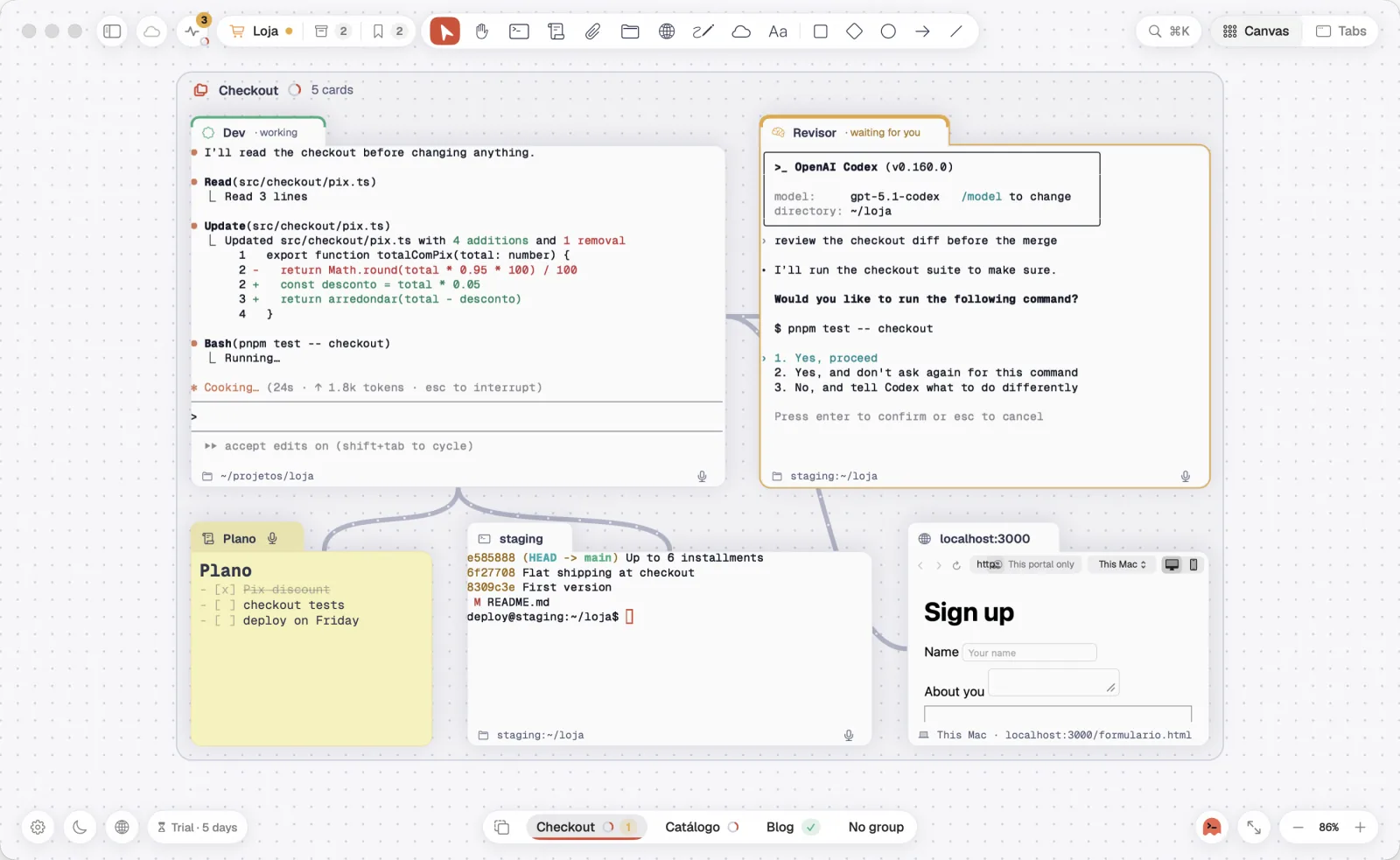
Octopus has a look of its own, in the dark theme by default. You can follow the system or pin light or dark, and everything follows along, terminals included.
Step by step
- Click the sun or moon in the sidebar footer and choose “System”, “Light” or “Dark”.
- Or open Settings › General › Appearance.
- On the Mac, also from the Canvas › Appearance menu. On Windows and Linux, from the action palette, Ctrl+Shift+P (“Appearance: Light / Dark”).
A few window details apply in any workspace.
Step by step
- Drag the window by the empty parts of the top. Double-click there to fill the screen.
- Panels (Now, history, saved groups, cloud accounts) close when you click outside them.
- On the Mac, the window has no “Close” on ⌘W: it deletes the selected card. To quit, use ⌘Q.
- On the Mac, “About Octopus”, in the Octopus menu, shows the app's version.
- On Windows and Linux, F11 puts the window in full screen, and Ctrl+Shift+Q quits Octopus. On the Mac, full screen is the window's green button.
| Quit | ⌘QCtrl+Shift+Q |
| Full screen | —F11 |
See alsoThe tray and the windowGeneral